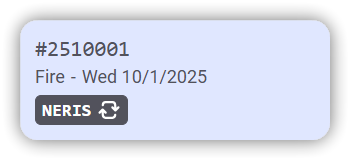
Fire Station & NERIS
Manage NERIS incidents for you department through the Fire Station online platform.
Fire Station NERIS Online Setup
Follow these instructions to connect to your department in NERIS from the Fire Station online platform. This must be completed before entering any NERIS incidents.
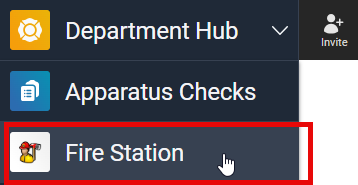
To access the NERIS functionality of Fire Station online, sign in to your Department HUB and select "Fire Station" from the drop-down menu in the top-left.
Connecting a NERIS Department
Your department in Fire Station may be connected to a department in NERIS. Follow these steps to make that connection.
Your FSSID must have the NERIS Manager permission assigned to complete these steps.
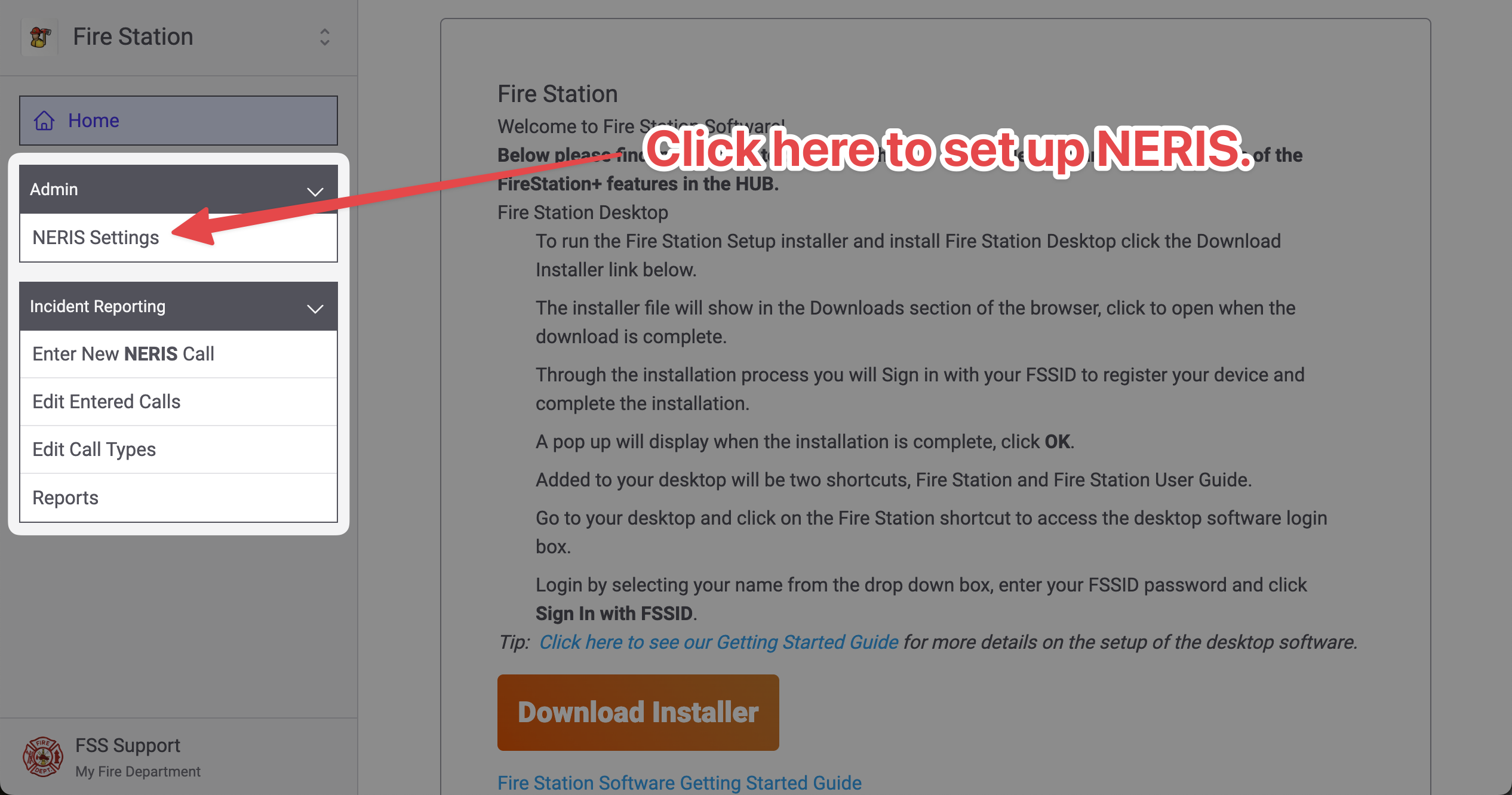
Expand the "Admin" section in the sidebar and click the "NERIS Settings" link.
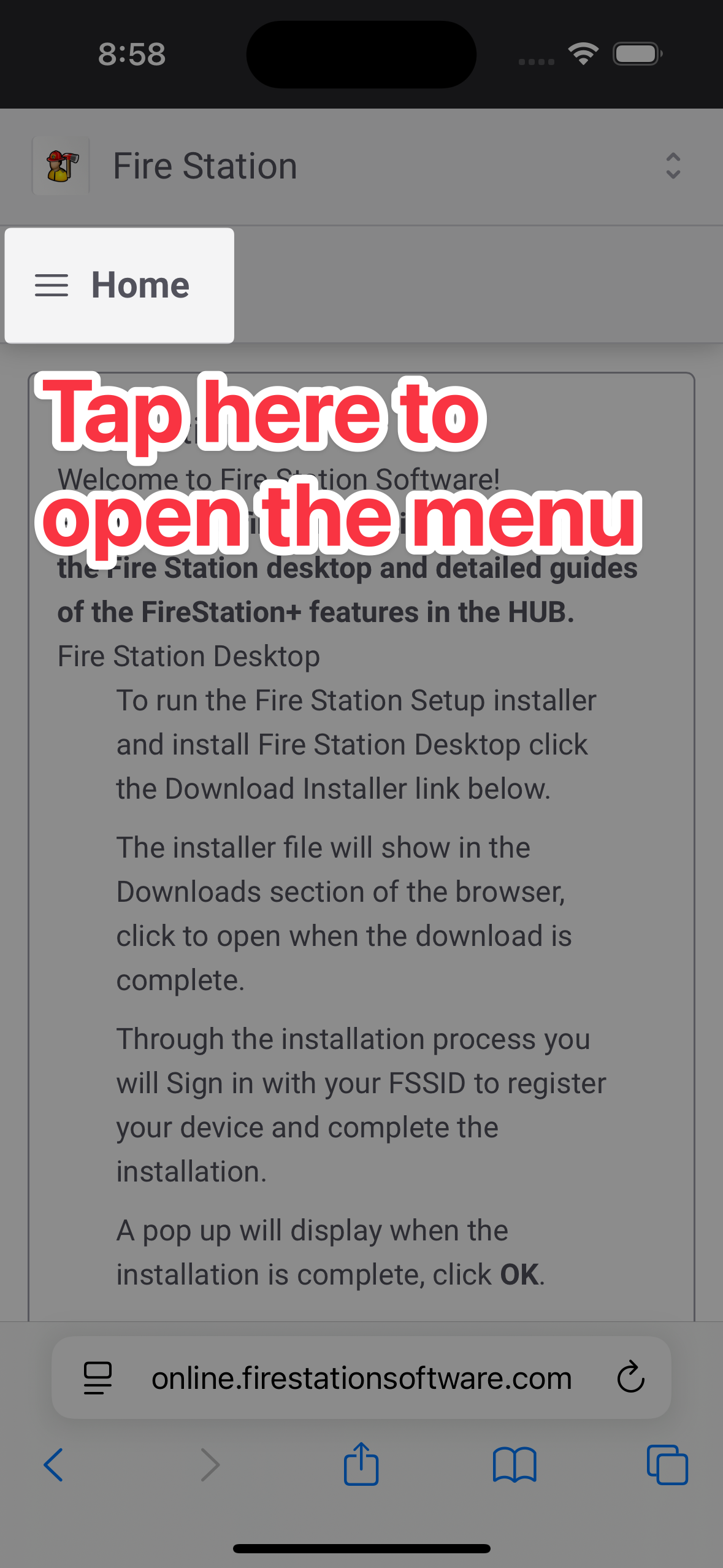
On mobile devices, tap the menu bar at the top of the screen to access the main menu.
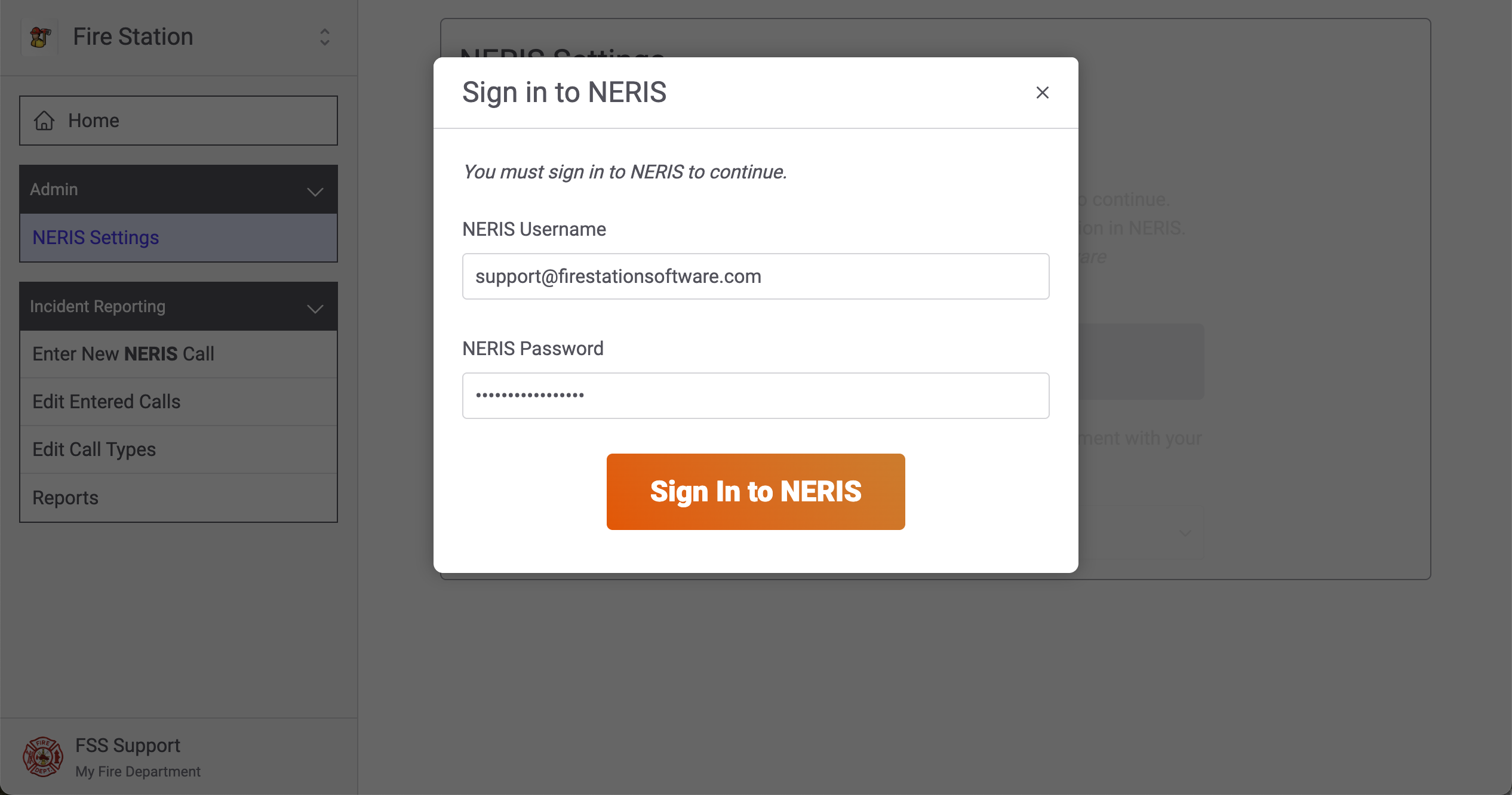
You will be brought to the NERIS settings page. Click the "Get Started" button and enter your NERIS username & password when prompted.
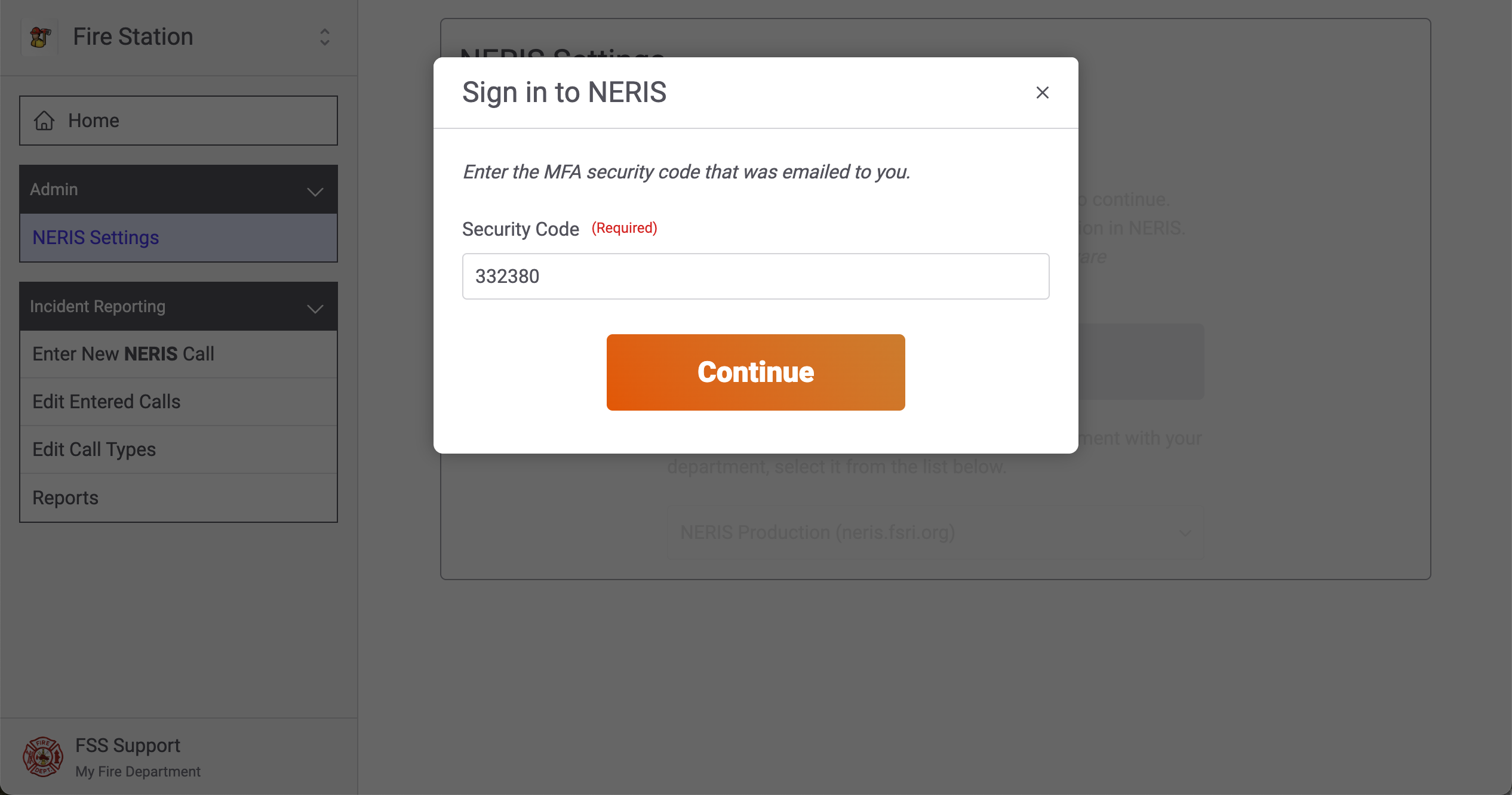
Then, you will be prompted to enter a login verification code. Enter the verification code that was sent to your email, then click "Continue" to sign in.
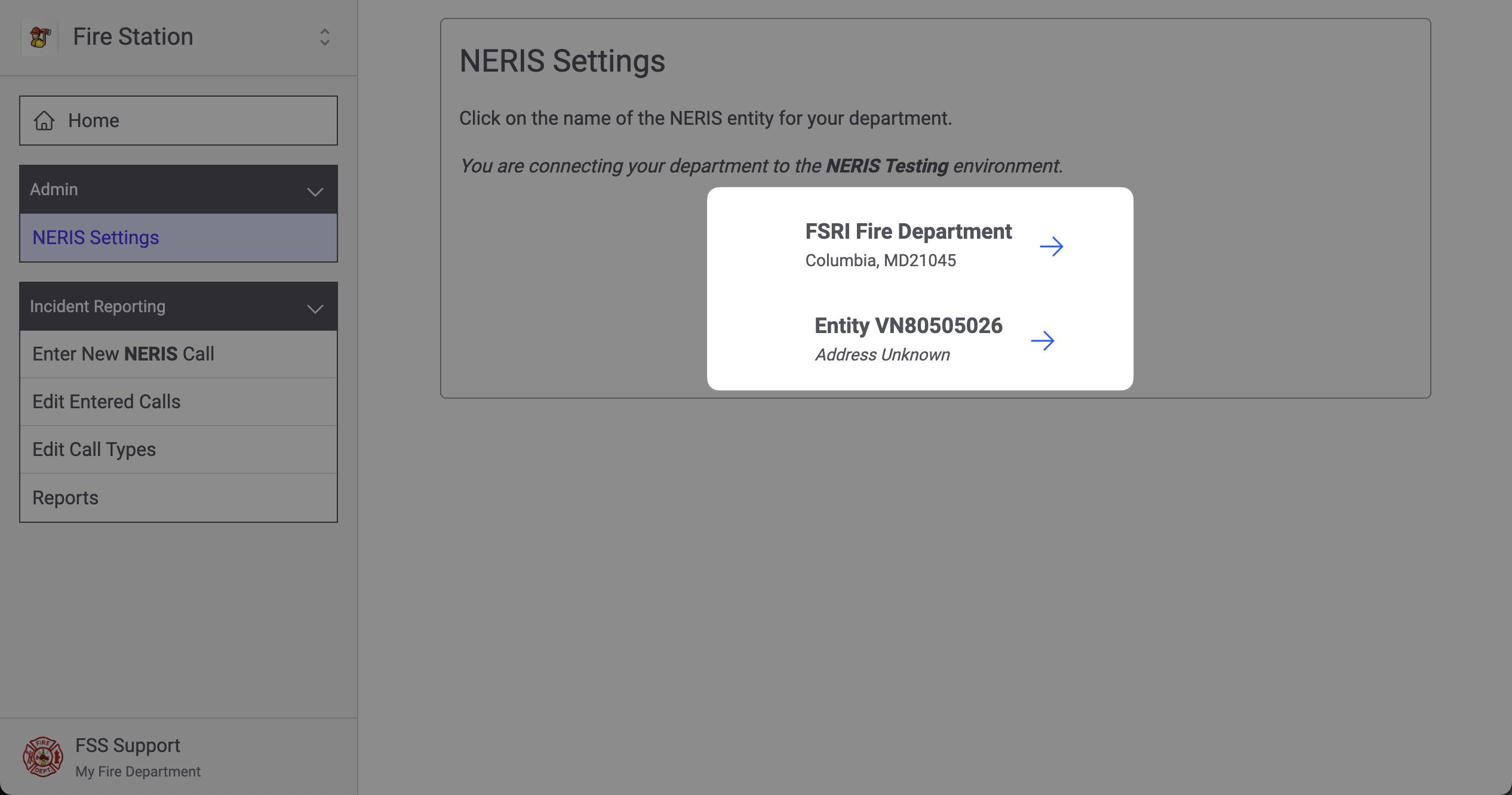
Next, you will see a list of NERIS departments that you are a member of. Click the name of the department that you want to connect Fire Station to.
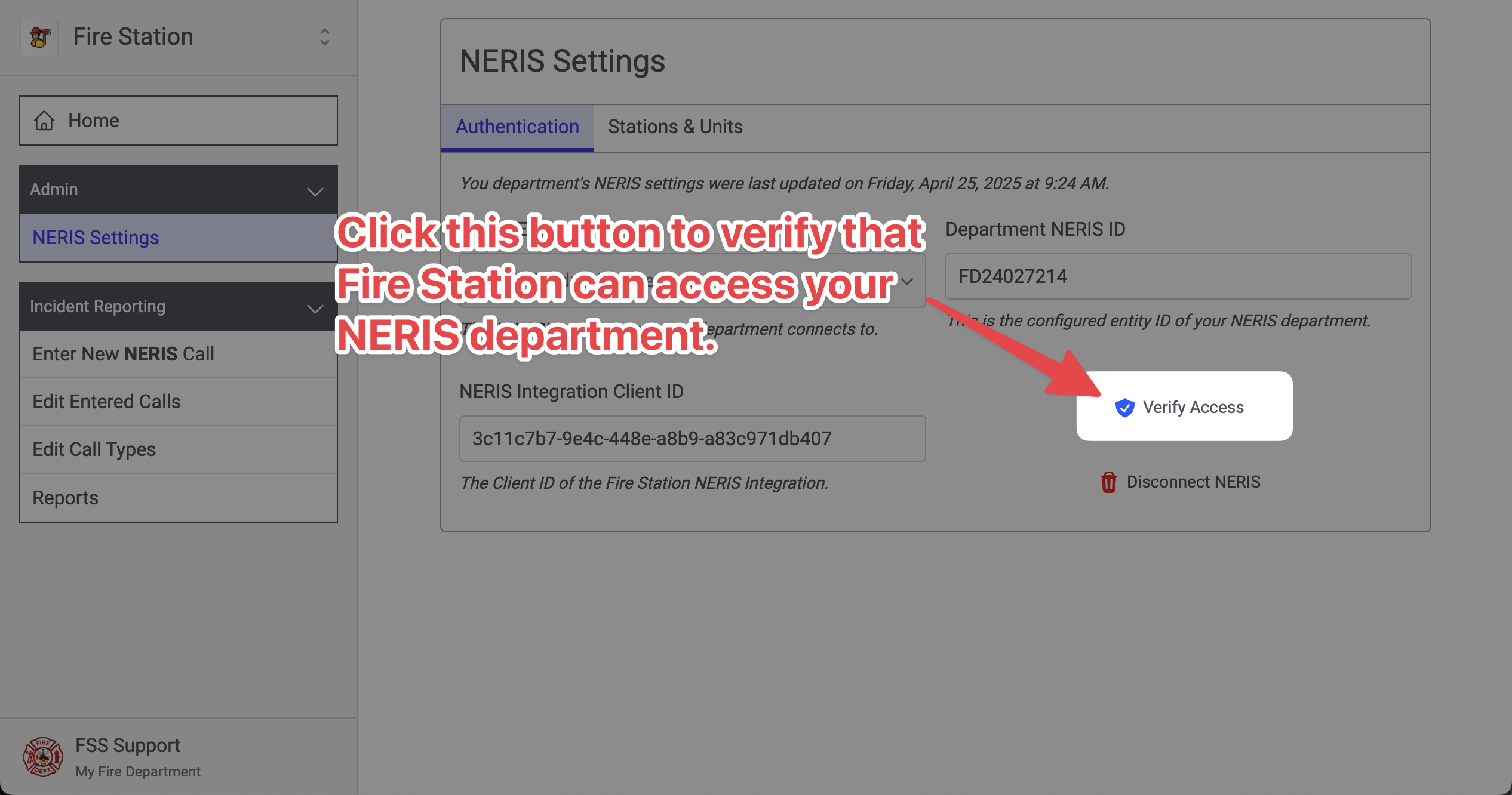
Once you have selected your department, you will see the NERIS Settings page. Click the "Verify Access" button to ensure that Fire Station can connect to your NERIS department.
Mapping NERIS Stations & Units
Once your NERIS department has been connected you can match up NERIS Stations and Units to station and apparatus records in Fire Station. This mapping can be created and modified from the Station & Units tab of the NERIS Settings page.
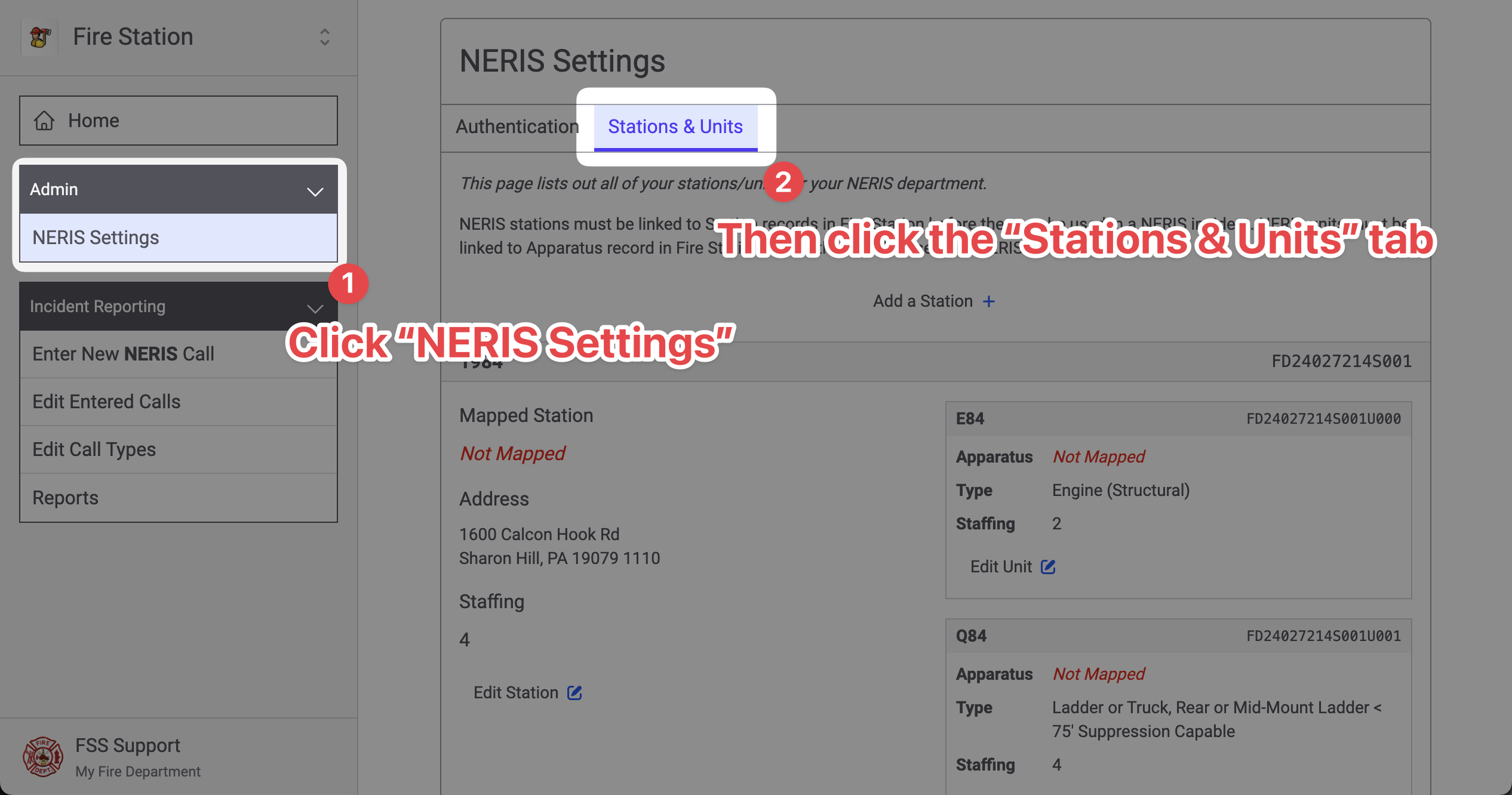
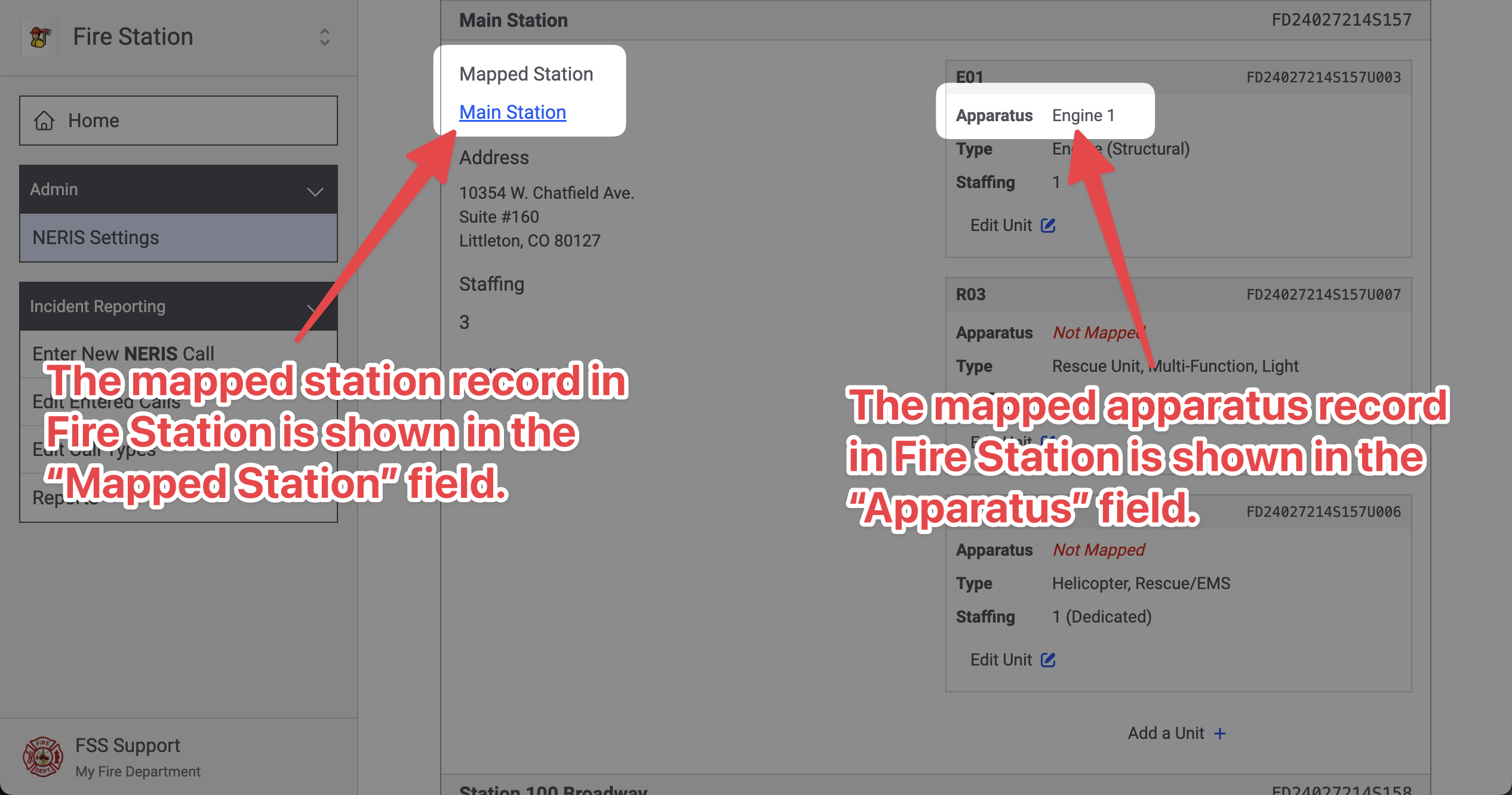
This page lists out all of the stations and units you have created in NERIS. For each station and unit, the station and apparatus record it is mapped to in Fire Station is displayed in the "Mapped Station" and "Apparatus" fields.
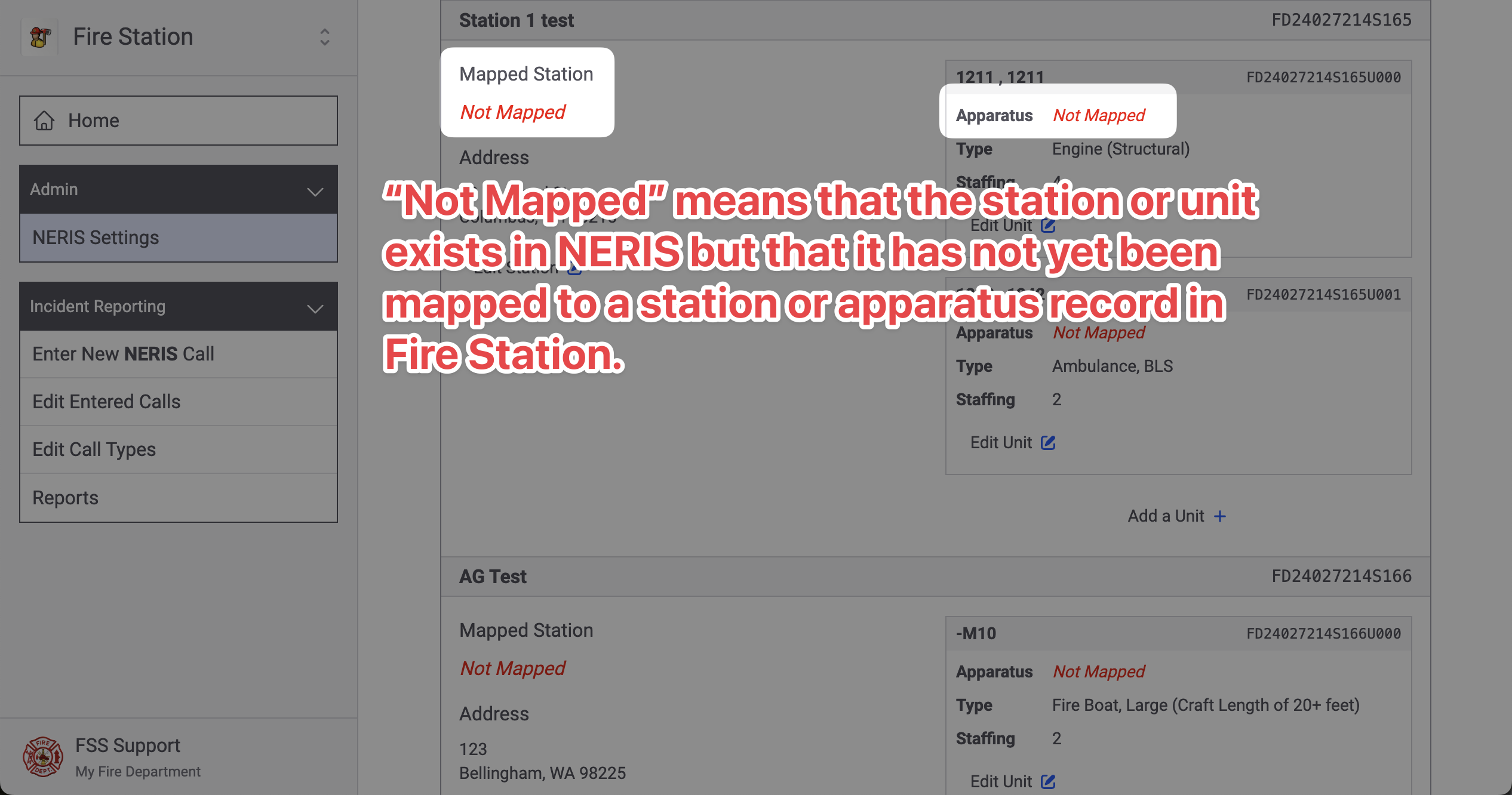
If a station or unit exists in NERIS and it has not been mapped to a station or apparatus record in Fire Station, the text "Not Mapped" will appear in red.
You can edit a NERIS station's mapping by clicking the "Edit Station" button in the station's section. You can also edit a NERIS unit's mapping by clicking the "Edit Unit" button in the unit's section.
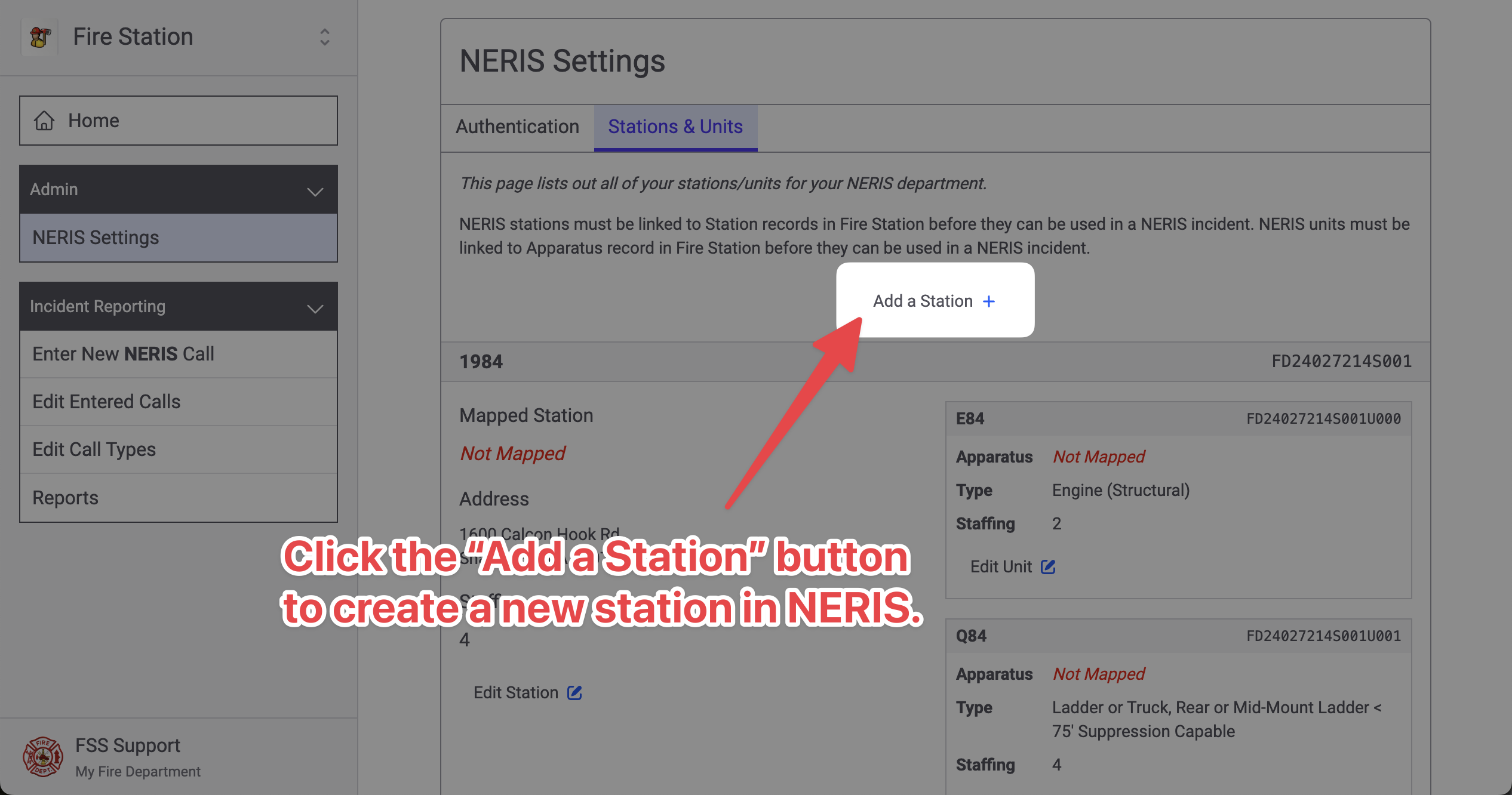
To create an additional NERIS station that maps to existing station records in Fire Station, click the "Add a Station" button at the top of the page.
Mapping NERIS Stations
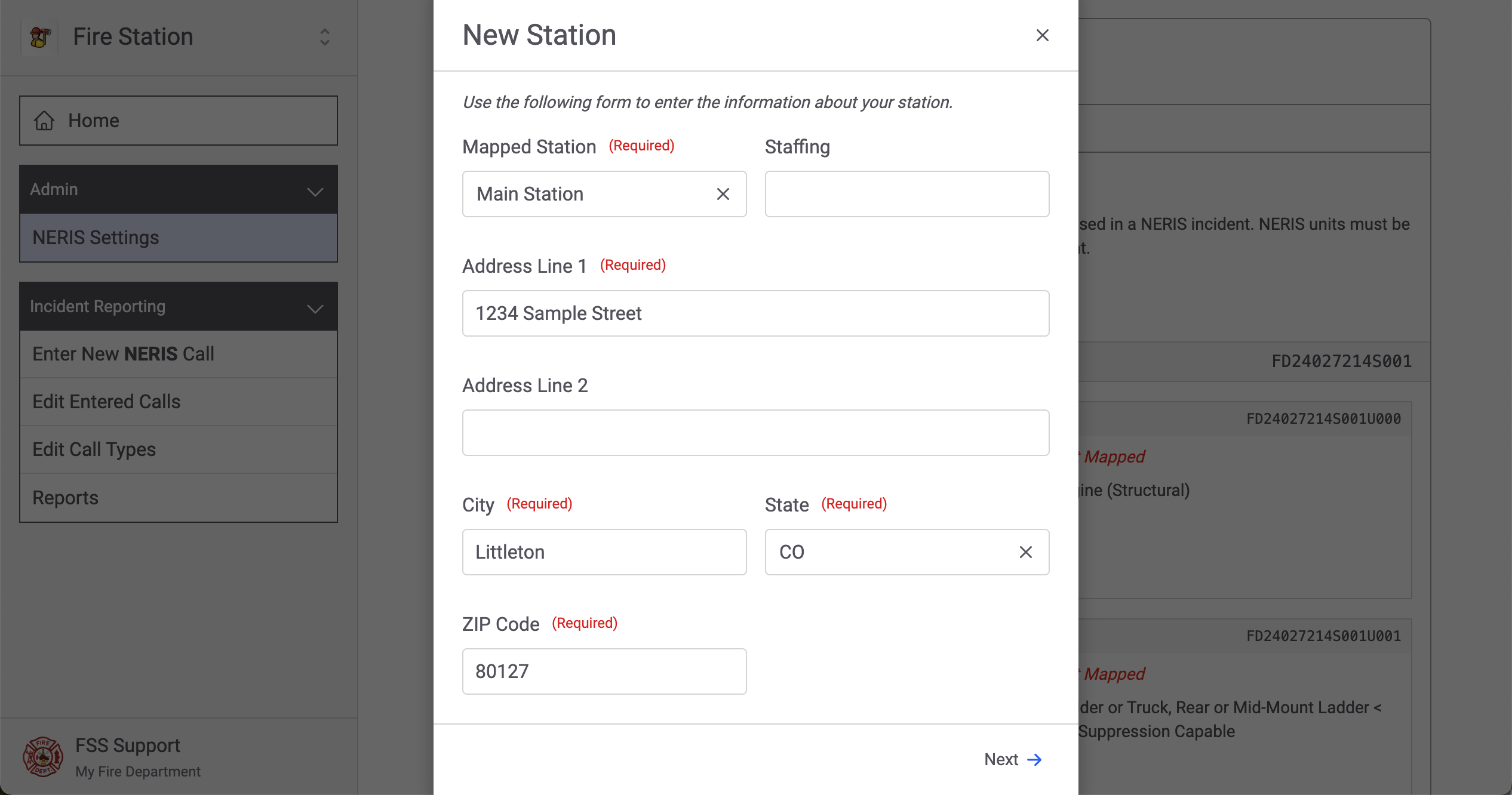
When you create a new NERIS Station (by clicking the "Add a Station" button) or when you edit a NERIS Station (by clicking the "Edit Station" button), you will see the NERIS station modal appear. Fill out the station information and click the "Next" button to continue.
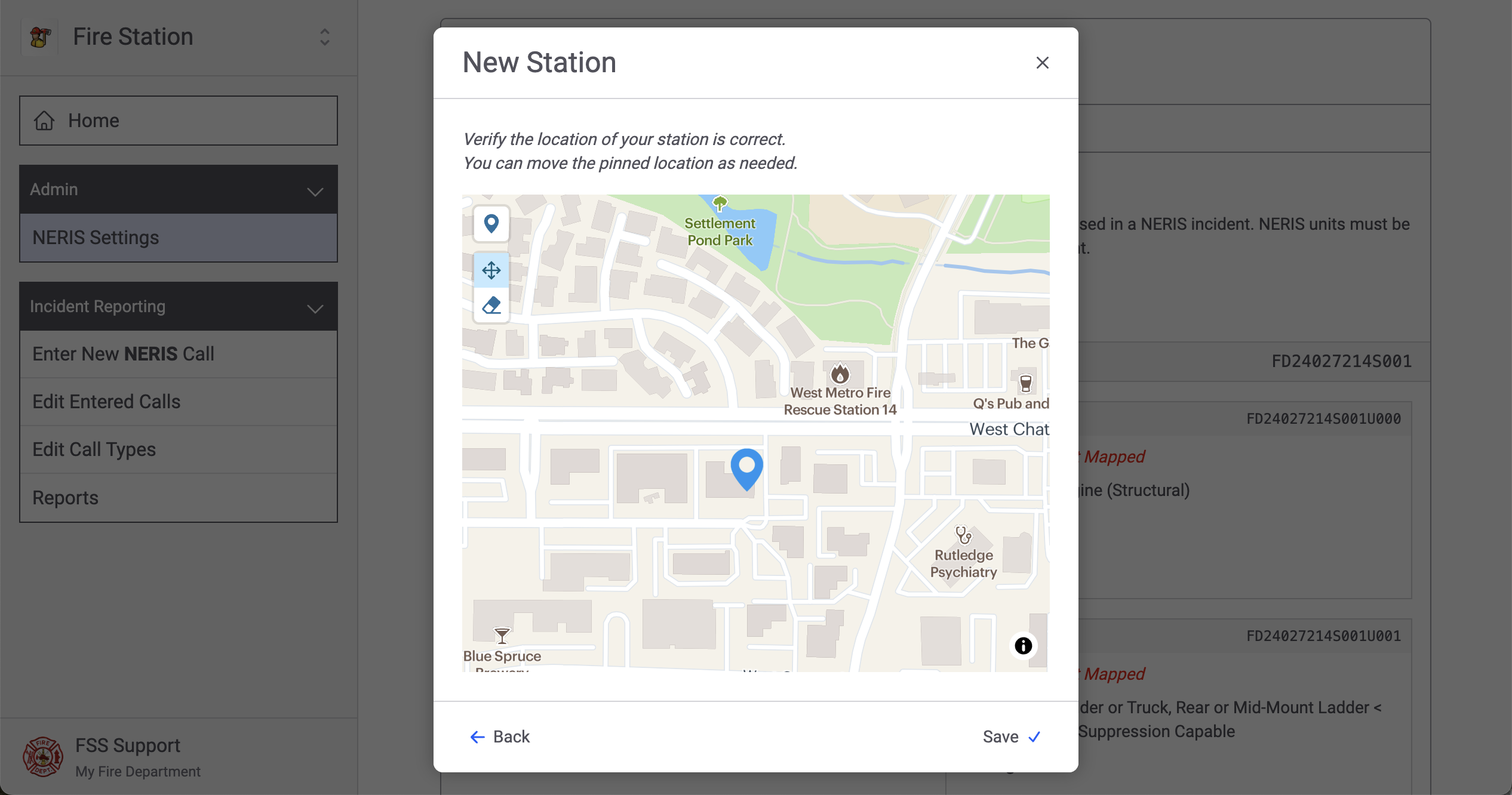
The next screen will show you the station's location on a map. You can move the pin by clicking and dragging it to a new location. Click the "Save" button to when you are finished.
Mapping NERIS Units
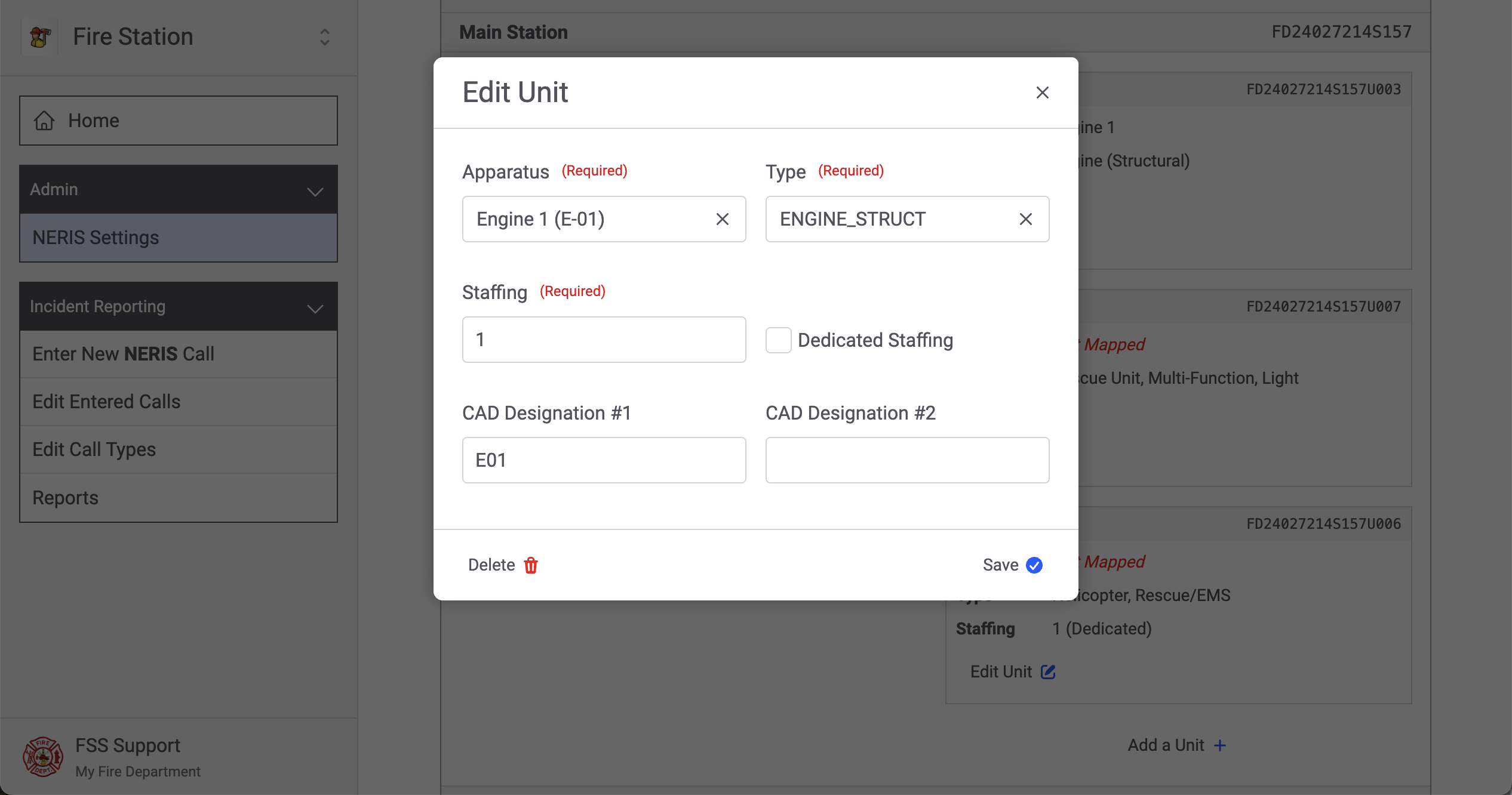
When you create a new NERIS Unit (by clicking the "Add a Unit" button) or when you edit an existing unit (by clicking the "Edit Unit" button), you will see the NERIS Unit details in a modal. Fill out the unit's information and click the "Save" button to create or update the unit.
Next Steps
Once you have connected Fire Station to your NERIS department, and your station & apparatus records have been mapped, you are ready to start entering NERIS incidents.
Entering NERIS Incidents from Fire Station Online
Follow these instructions to learn how to enter NERIS incidents from Fire Station's online platform. NERIS incidents are entered into Fire Station as call records. Then the NERIS call record is validated with NERIS and submitted to create the incident in NERIS. Calls that have been submitted to NERIS then updated in Fire Station may be re-submitted to NERIS.
You must complete the initial NERIS setup before you can enter NERIS calls in Fire Station
Your FSSID must have the NERIS Incident Reporting
Creating New NERIS Calls
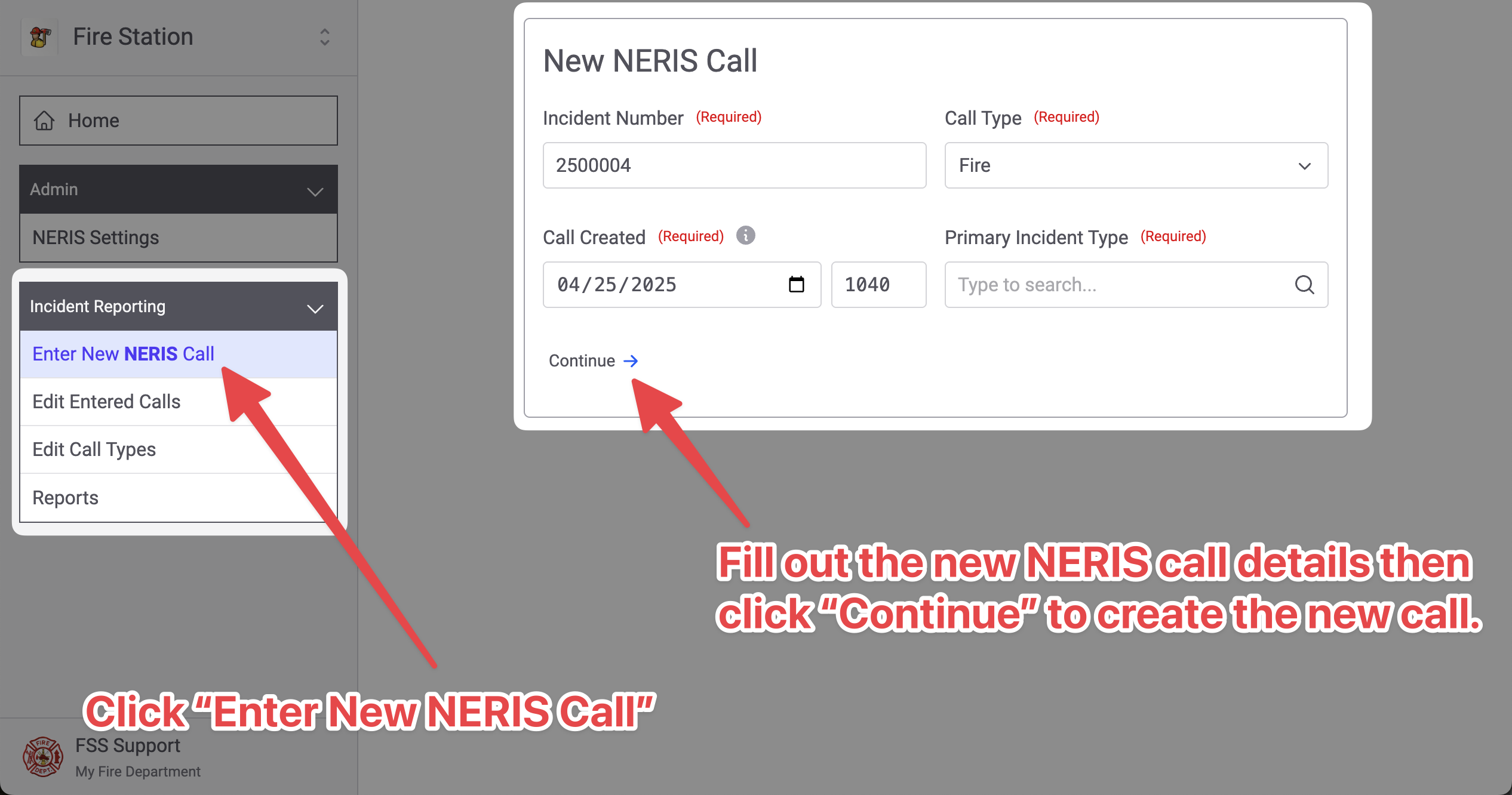
To create a new NERIS call, click the "Enter New NERIS Call" from the "Incident Reporting" section of the menu.
Enter the new NERIS call details then click "Continue" to save the call.
Editing NERIS Calls
Click on the tabs to view different sections of the NERIS incident.
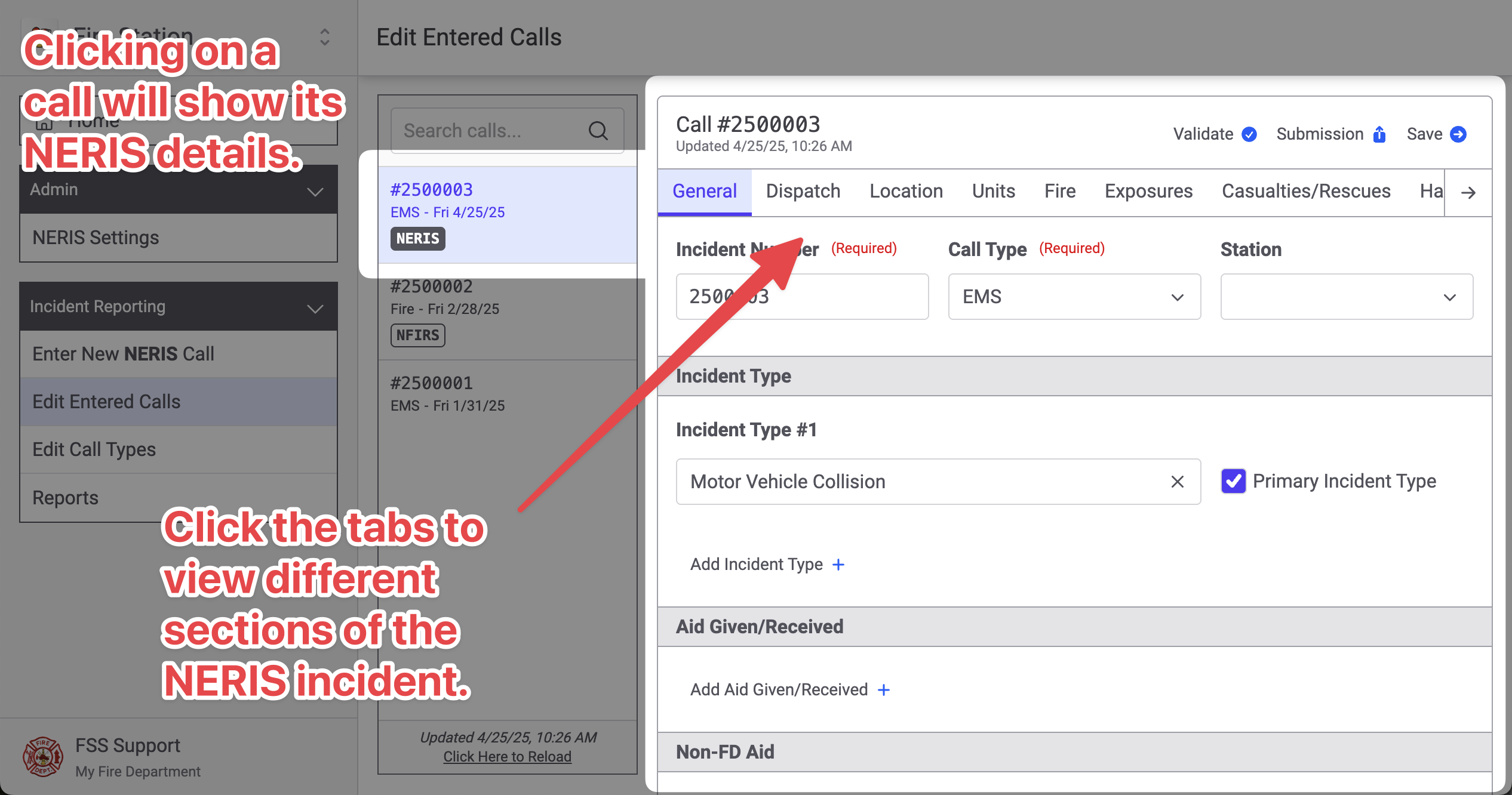
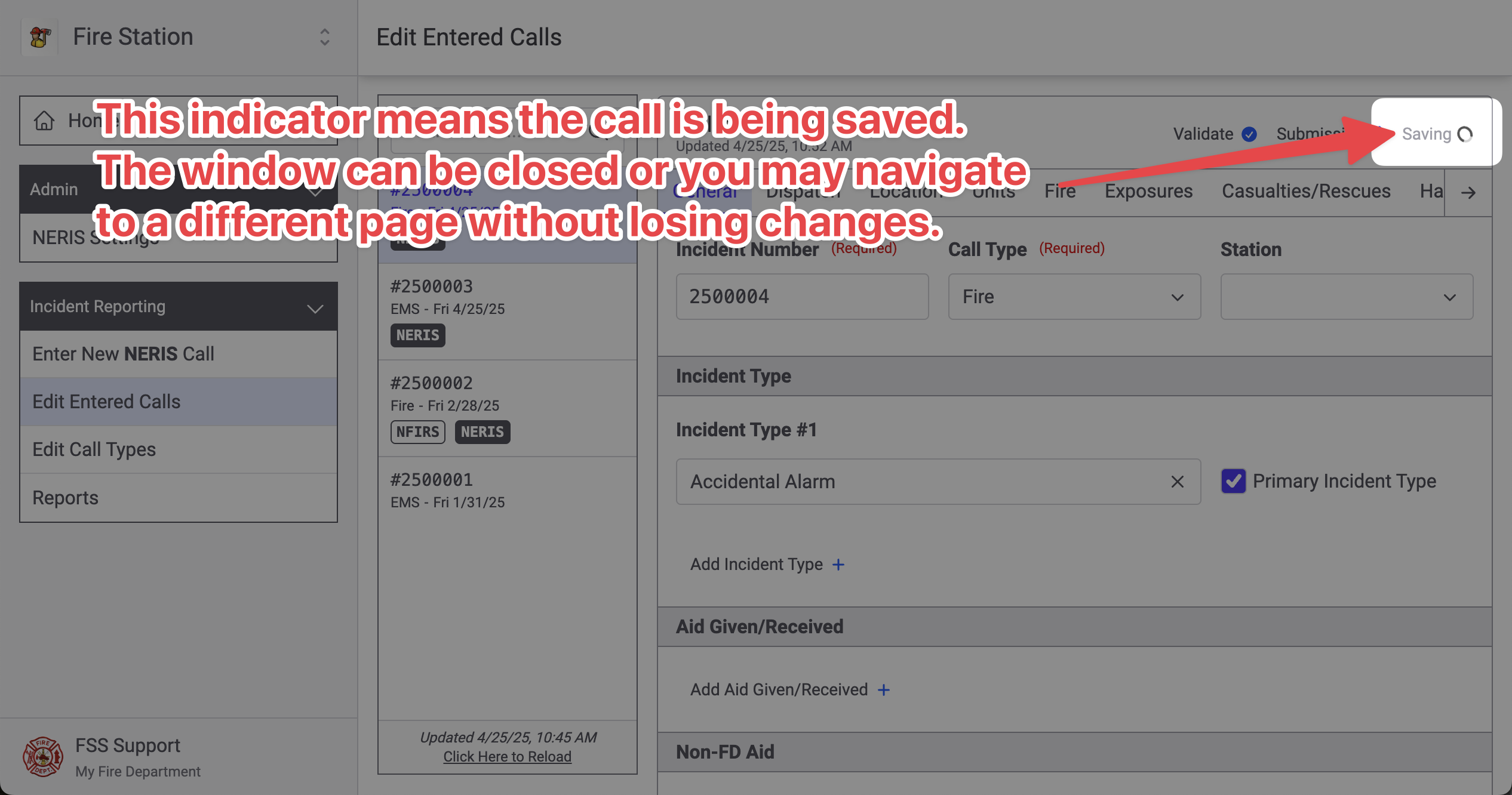
The NERIS incident is automatically saved as you enter data. There is no need to click the save button. You will see this saving indicator in the top right while the call is being saved. It is ok to close the window or reload the page while the call is being saved, the changes will not be lost.
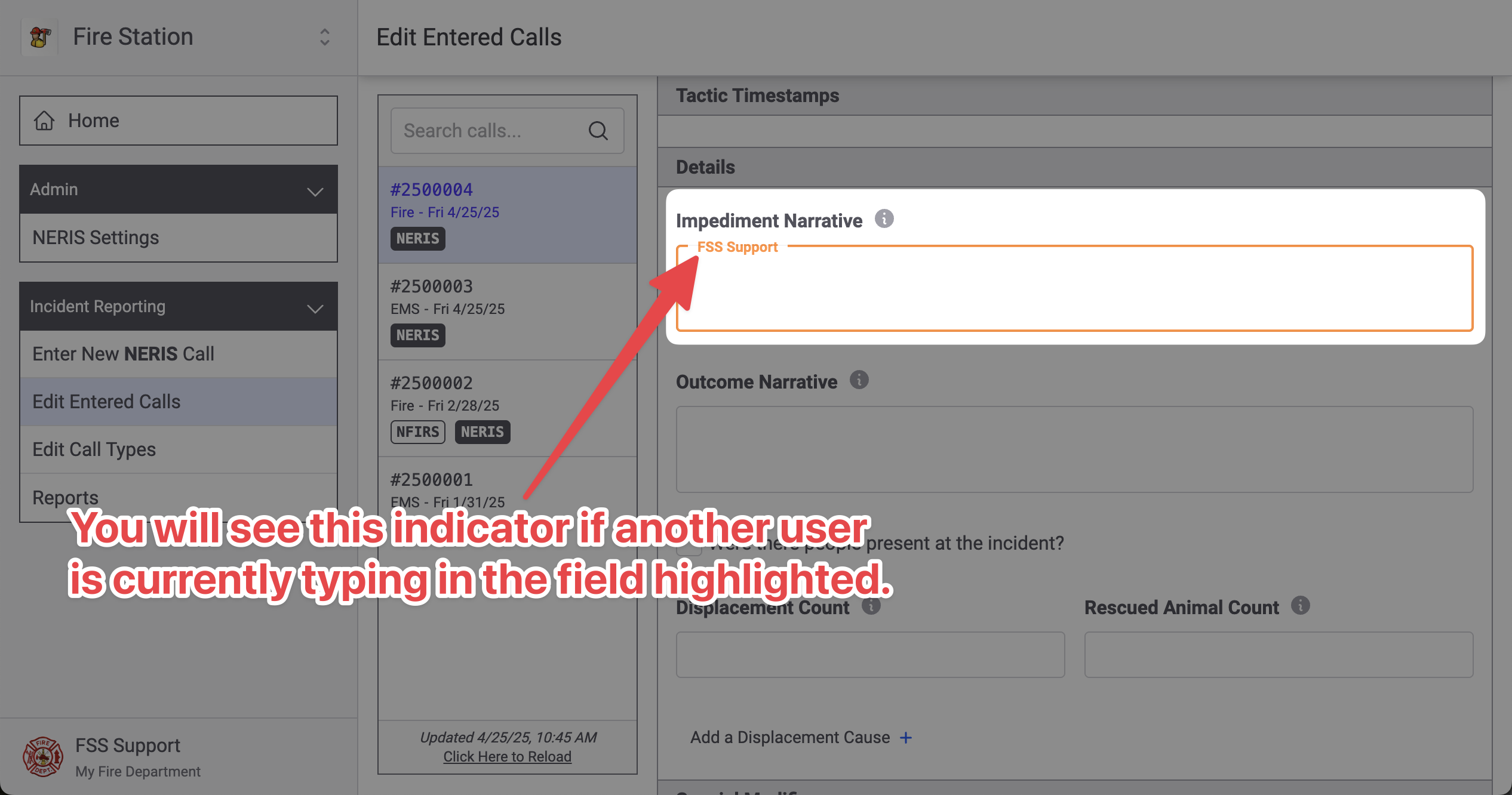
If multiple people are editing the same call, you will see an indicator as they make changes.
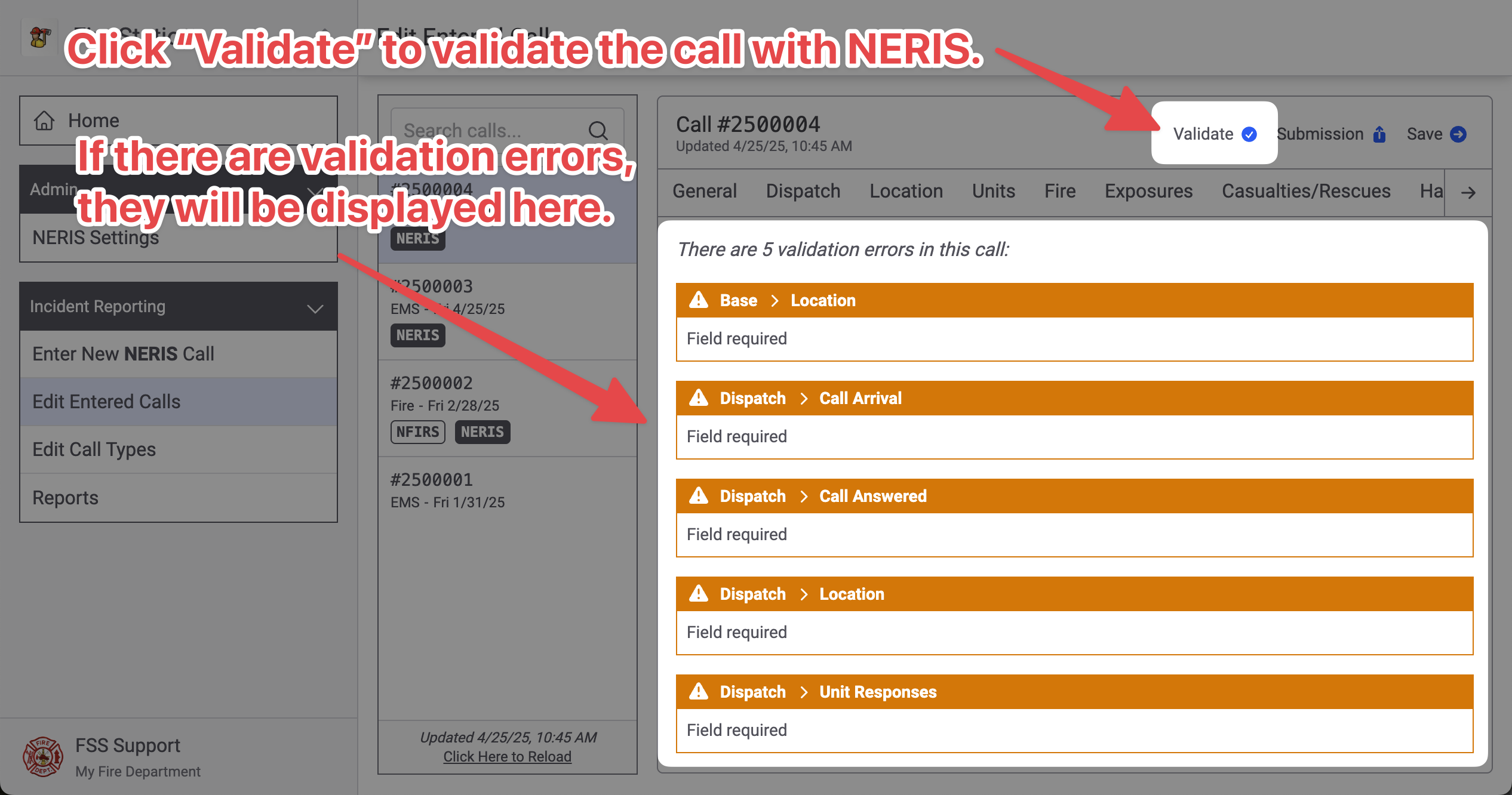
Validating NERIS Calls
While editing a NERIS call, you can validate the incident by clicking the "Validate" button at the top of the screen. This will validate the call and list out all the validation errors that have been found.
Validation issues are returned directly from NERIS as soon as you click the "Validate" button
This screen will say "There are no validation errors" when the call is ready to be submitted to NERIS
After validating a call, validation errors may also be displayed in applicable sections of the NERIS incident.
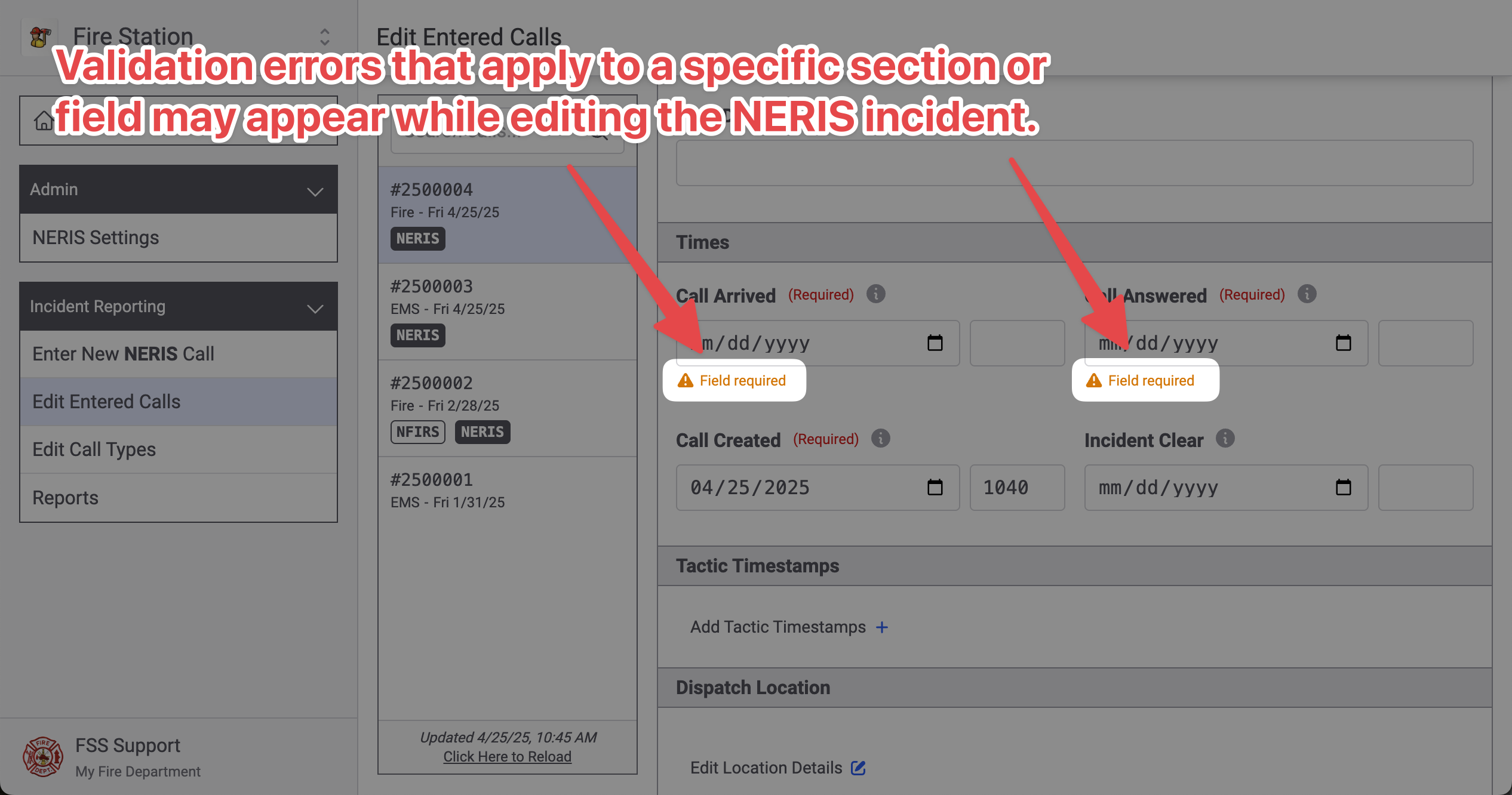
Note that validation errors do not disappear until the error has been corrected and the validate button has been clicked again, re-validating the call with NERIS.
Submitting NERIS Calls
Once a NERIS call has been validated, the call can be submitted to NERIS. This will create the NERIS incident in NERIS.
You must have the NERIS Submission permission to submit calls to NERIS
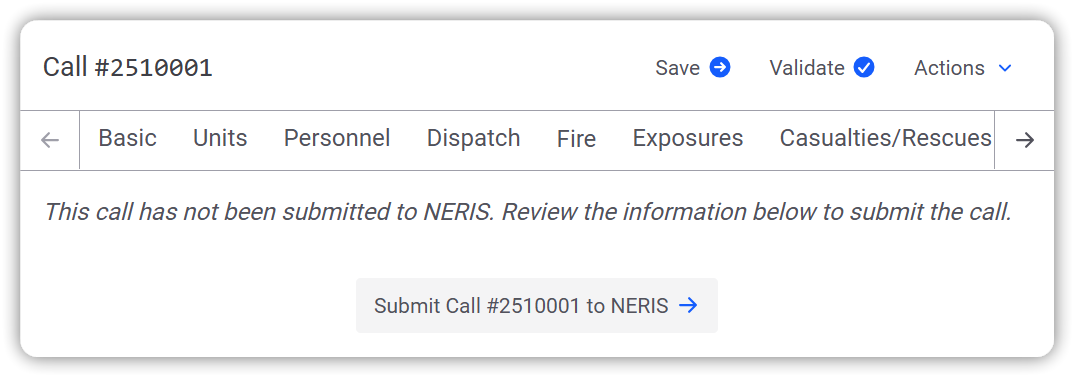
To submit a call, click the "Actions" button in the top-right, then click the "Submit" option.
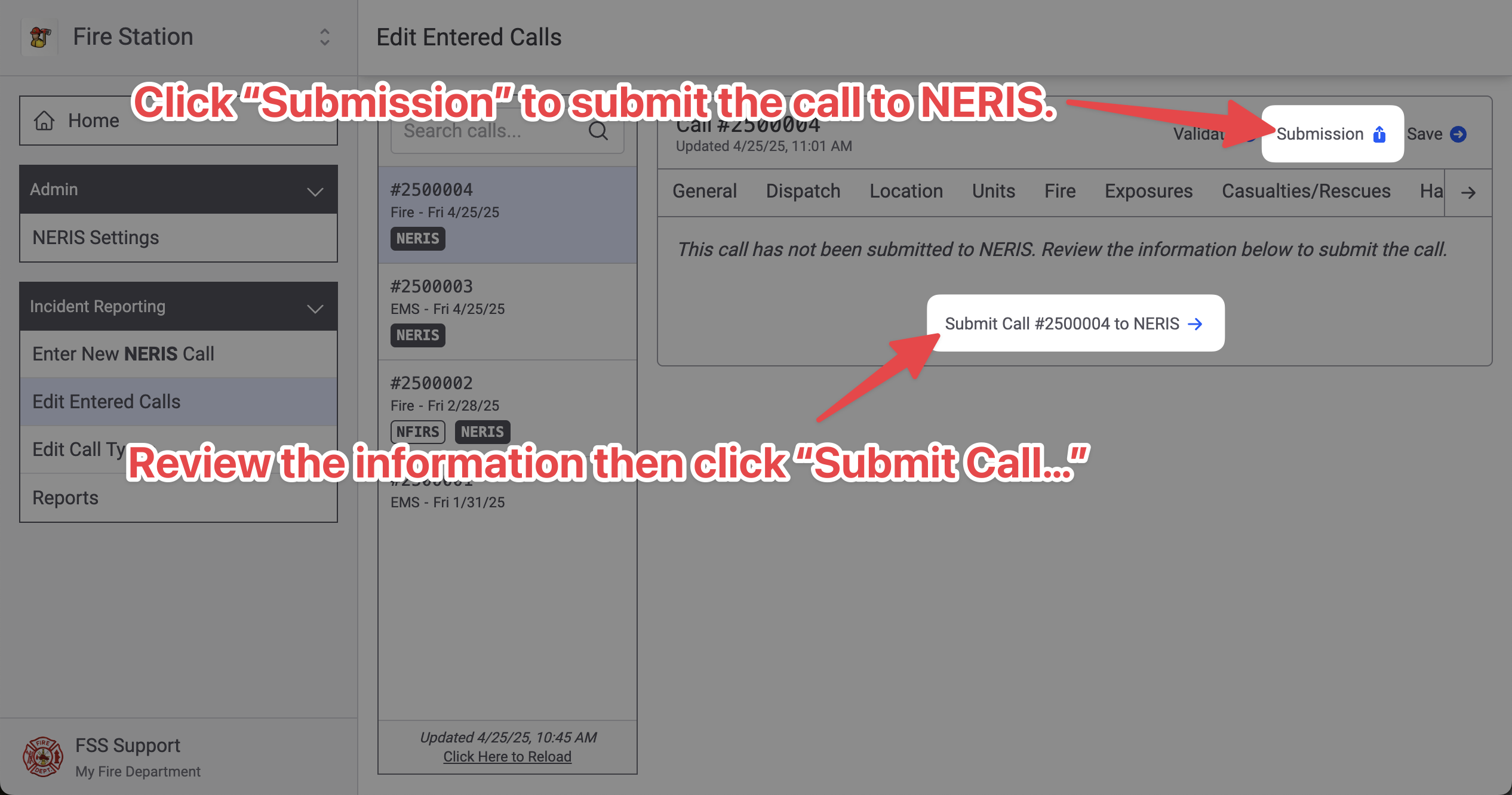
The next page re-validates the incident with NERIS. Click the "Submit Call..." to submit the call to NERIS.
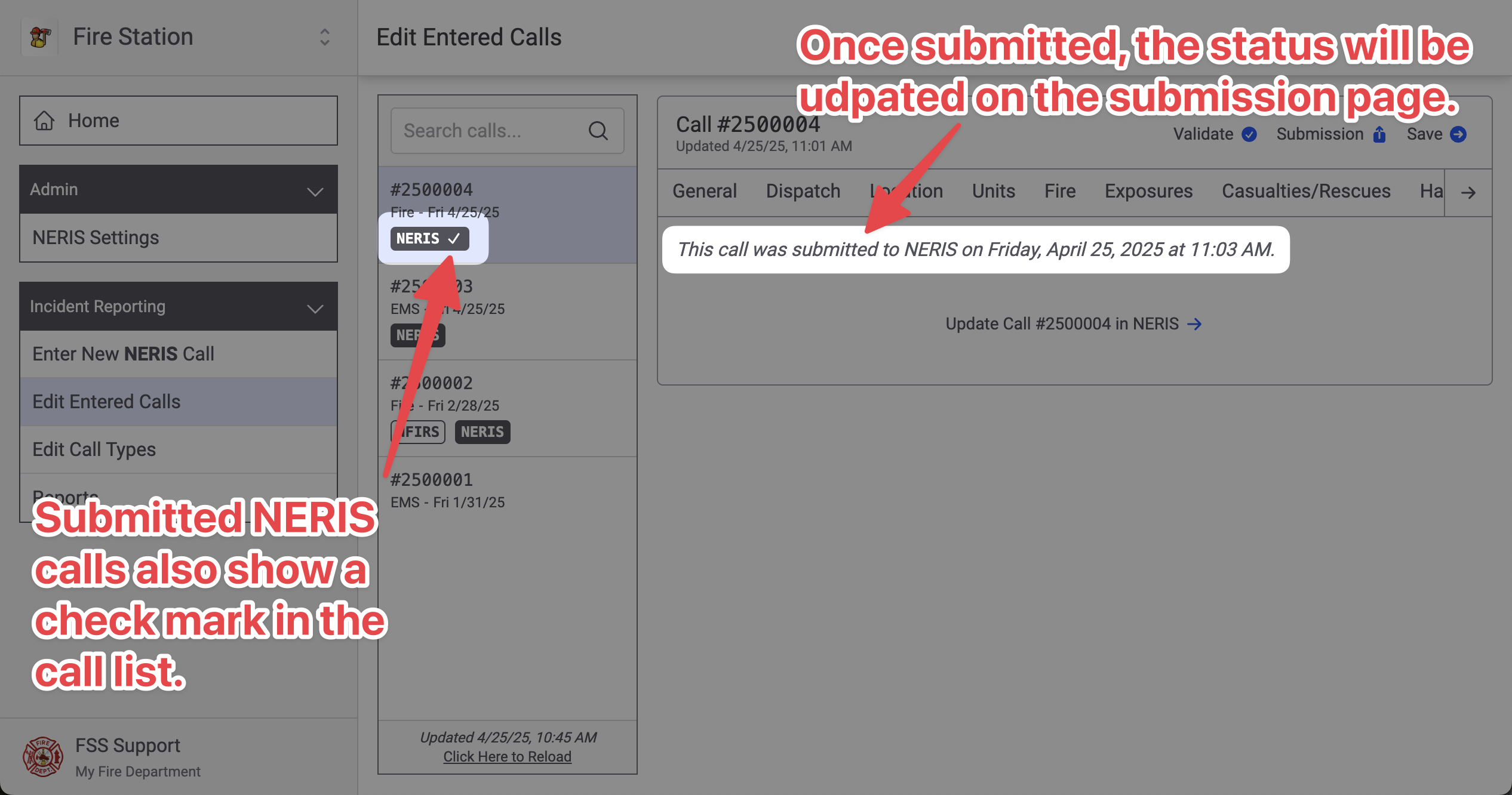
The call will be submitted and the status will be updated. Calls that have been submitted to NERIS show a checkmark in the call list.
If you make changes to the call in Fire Station after submitting it to NERIS, the checkmark changes to an update in progress icon. This indicates that there are changes that need to be re-submitted to NERIS.