You need *Department Manager* permissions to make these changes
#### Invite People to Your Department You can invite new members to your department by sending an invitation. 1. On a browser, go to [https://hub.firestationsoftware.com](https://hub.firestationsoftware.com). You may need to sign in. 2. In the left menu click *Invitations* in the *Personnel* section. 3. Click "Invite Member" - Alternatively, click the "Invite" shortcut in the top bar. 4. Enter one or more email addresses, check off the permissions you want to assign, and click "Send Invitation".Invitation links last for 7 days. Invitations can be resent, even if they have expired, and the expiration will be extended to 7 days from the update.
[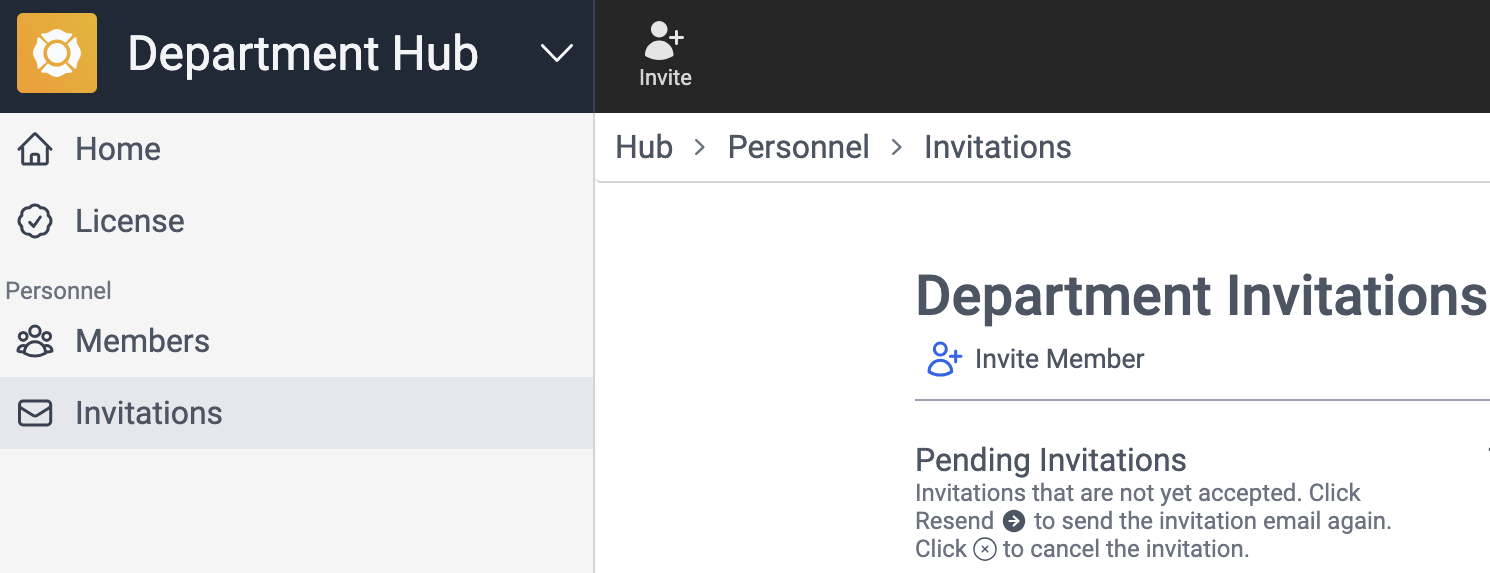](https://docs.firestationsoftware.com/uploads/images/gallery/2024-08/1-invitations.png) [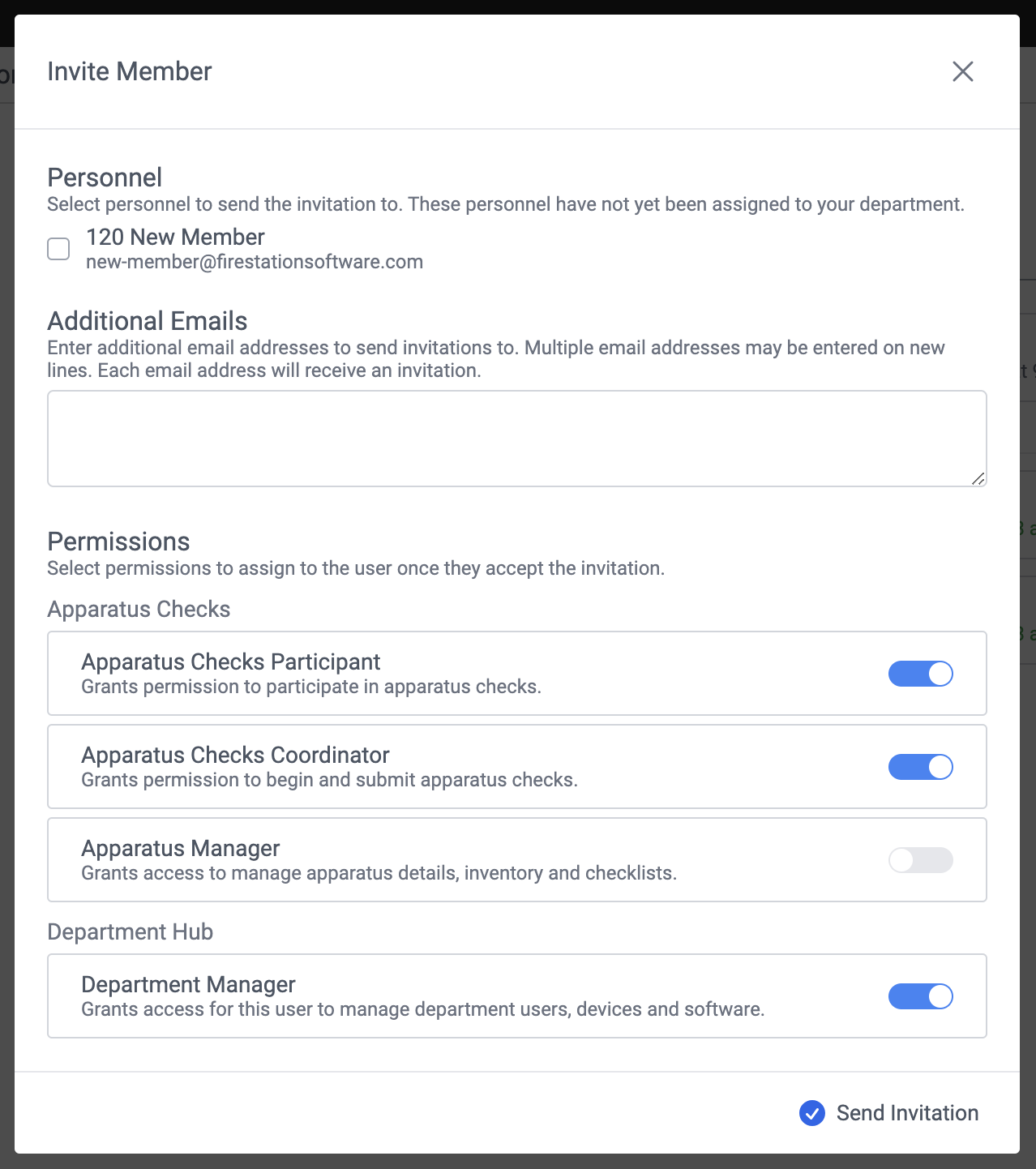](https://docs.firestationsoftware.com/uploads/images/gallery/2024-08/2-invite-modal.png)If you have Cloud Data Hosting, you can send invitations by selecting a Fire Station firefighter. The firefighter must be active, have an email, and not be linked to an FSSID.
#### Resend or Delete Invitations Unaccepted invitations are listed in the *Pending Invitations*. To resend an invitation, click the "Resend" button on the right, and to delete an invitation, click the "X" circle icon on the left. [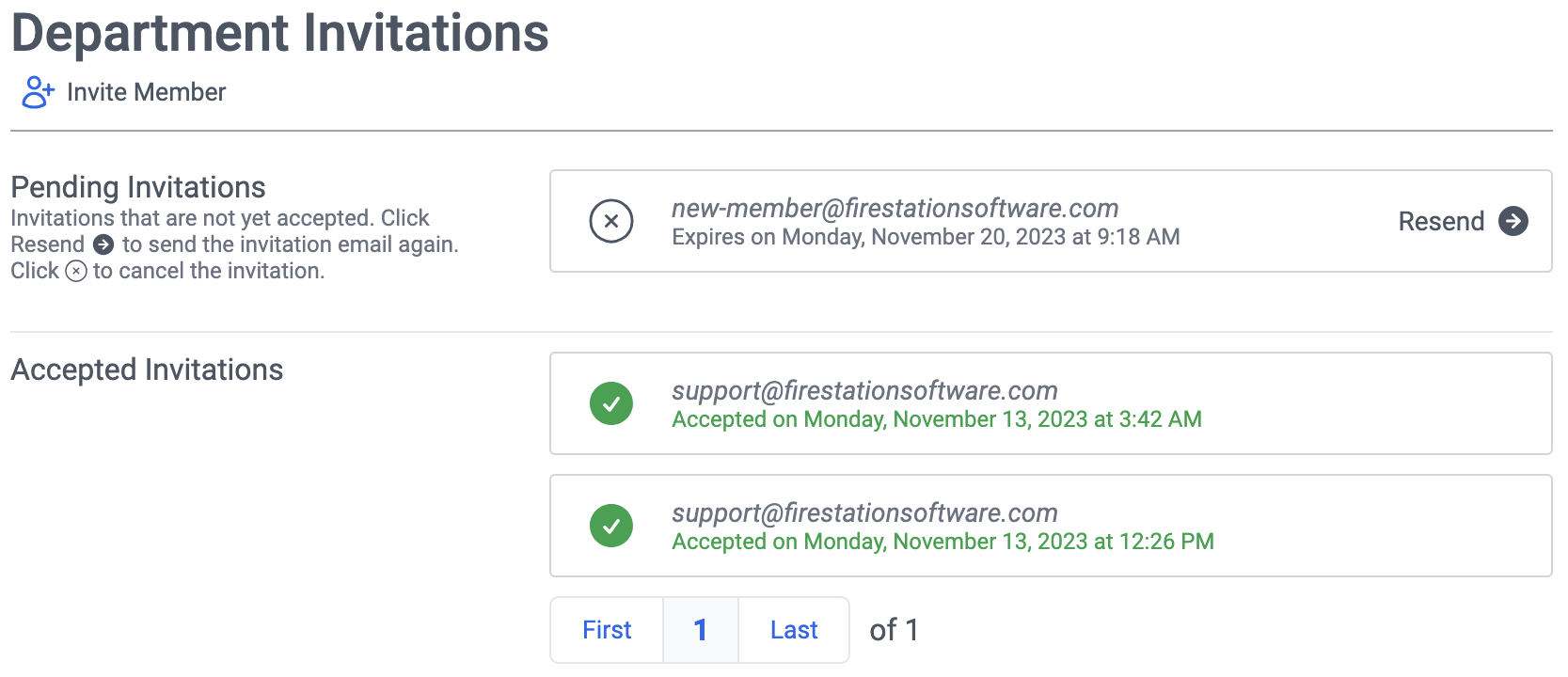](https://docs.firestationsoftware.com/uploads/images/gallery/2024-08/3-pending-invitations.png) --- ### Department MembersYou need *Department Manager* permissions to make these changes
Managers can browse the list of members and search for them by name or email. To manage a member, click one of the rows in the search results. #### View a Member 1. On a browser, go to [https://hub.firestationsoftware.com](https://hub.firestationsoftware.com). You may need to sign in. 2. In the left menu click *Members* in the *Personnel* section. 3. Use the search box to filter by name or email. 4. When you have found the person you are looking for, click in their row to view their detailed information. [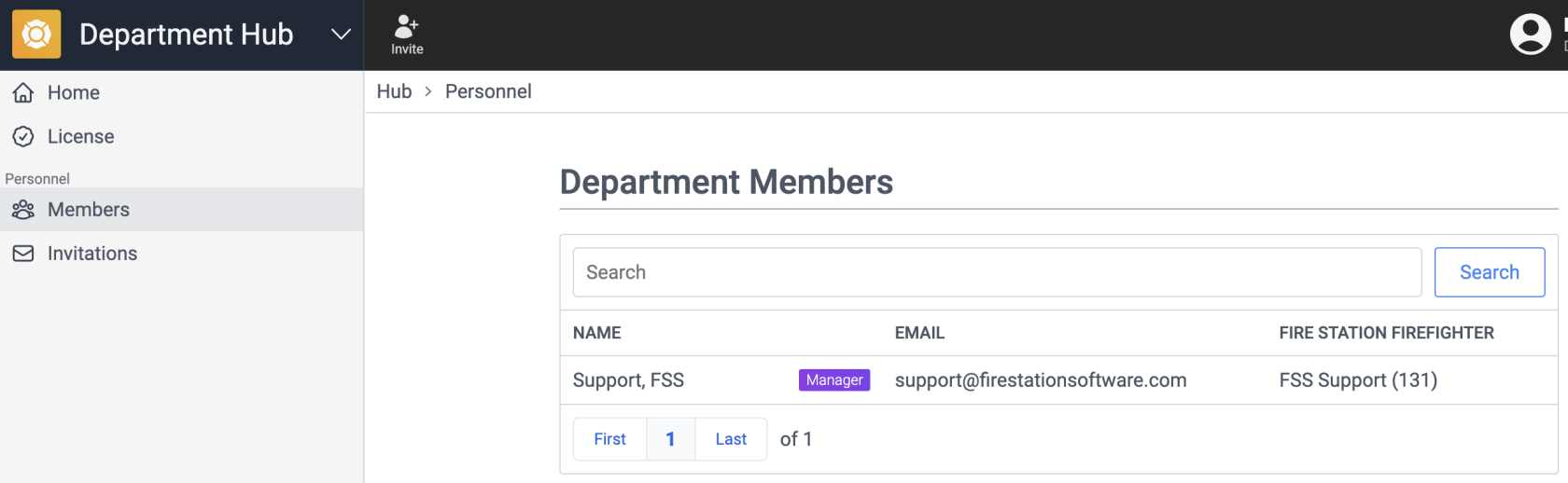](https://docs.firestationsoftware.com/uploads/images/gallery/2024-08/1-member-list.png) [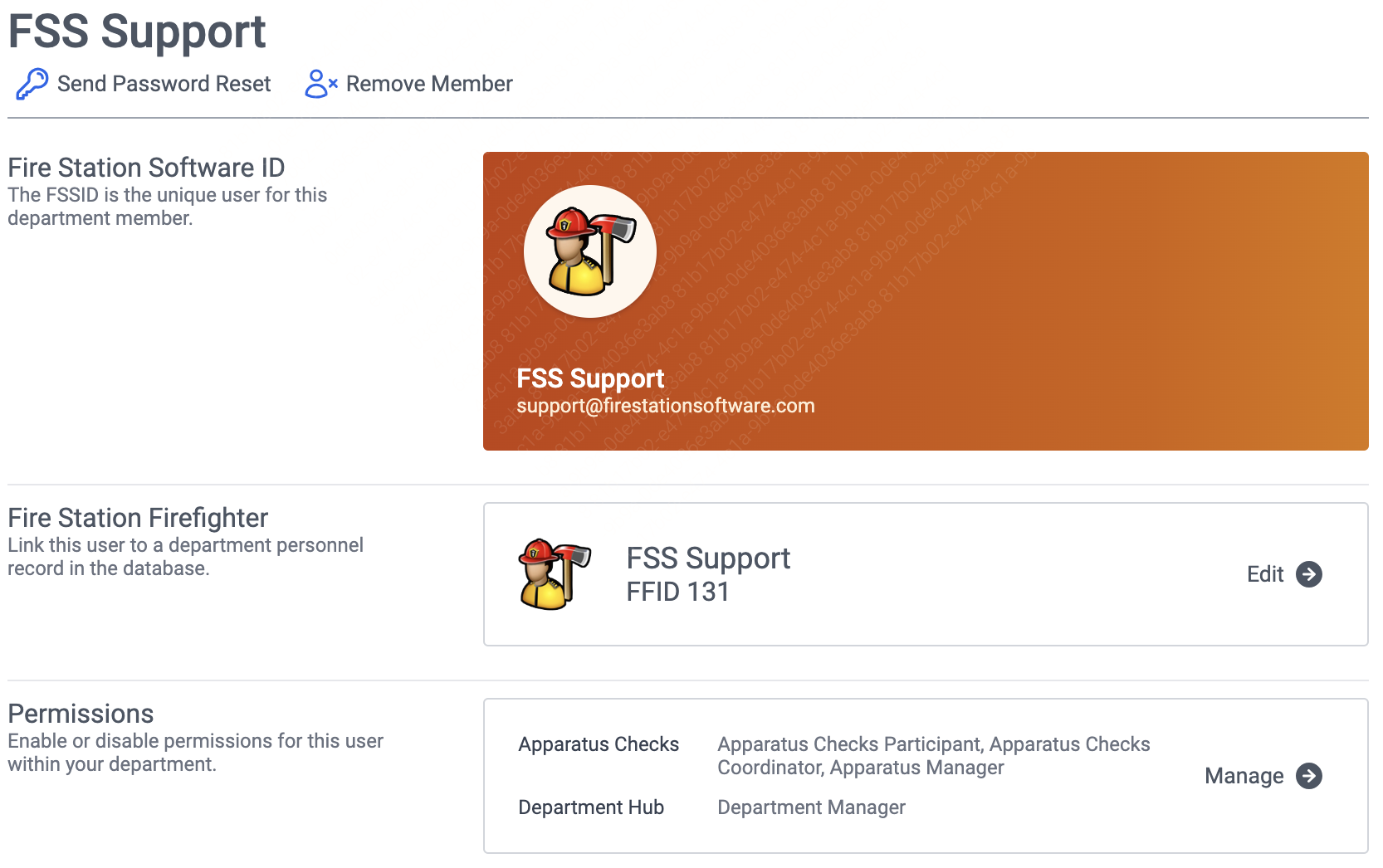](https://docs.firestationsoftware.com/uploads/images/gallery/2024-08/2-member-detail.png) #### Reset a Member Password 1. Follow the steps above to view a member. 2. Click "Send Password Reset" under the name of the member. [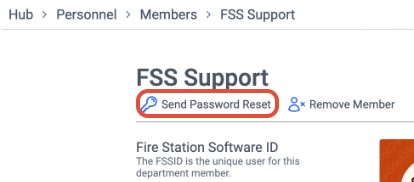](https://docs.firestationsoftware.com/uploads/images/gallery/2024-08/5-password-reset.png) #### Remove a Member 1. Follow the steps above to view a member. 2. Click "Remove Member" under the name of the member.When a member is removed, they will still have their FSSID, but they will not be able to access your department the next time they sign in. If they are currently signed in, they will still be able to access your department until they sign out, or their session expires.
[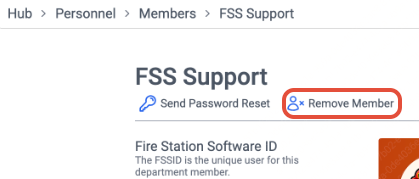](https://docs.firestationsoftware.com/uploads/images/gallery/2024-08/6-remove-member.png) #### Link a Firefighter In Fire Station desktop, personnel information is saved in firefighter records. You must link a firefighter to a member in order to use the Apparatus Checks and Incident Reports apps. 1. Follow the steps above to view a member. 2. In the *Fire Station Firefighter* section, click the "Edit" button on the right. 3. Search the firefighters by name or department ID, select one, and click "Save" [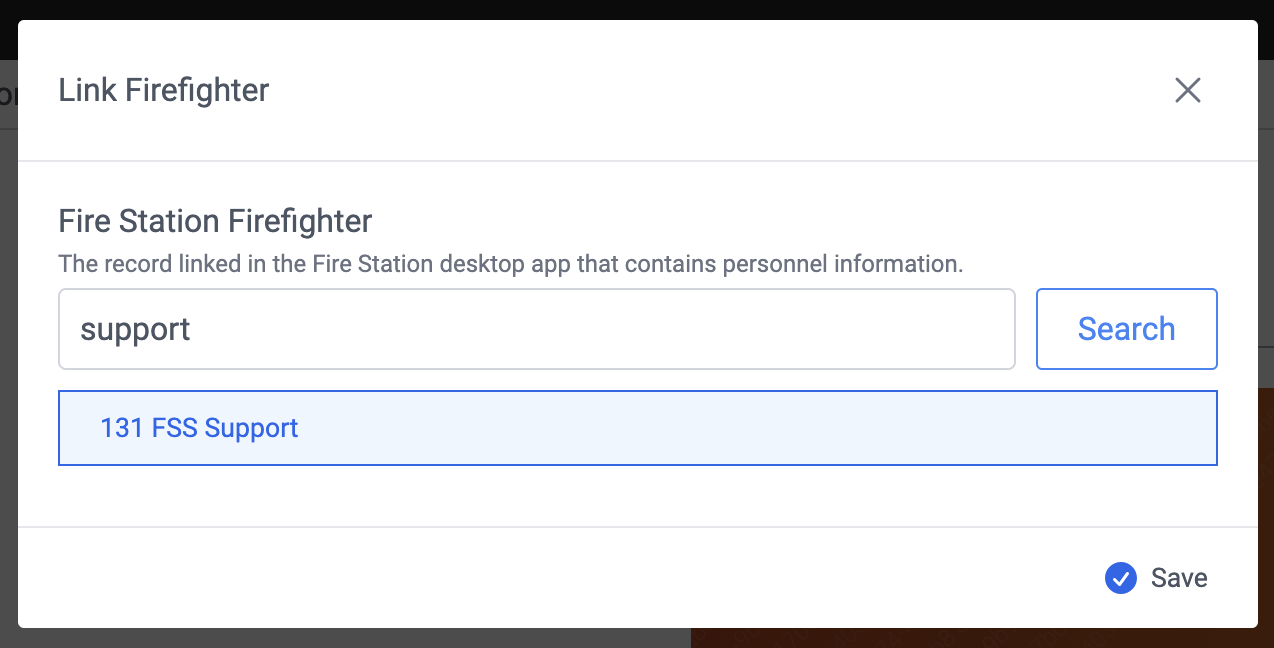](https://docs.firestationsoftware.com/uploads/images/gallery/2024-08/4-link-firefighter.png)If you use a self-hosted, Microsoft Access database for Fire Station, the Department Hub cannot be used to link a firefighter to a member. Instead, you must link to a department member from menus in Fire Station Desktop.
#### Manage Member Permissions 1. Follow the steps above to view a member. 2. In the *Permissions* section, click the "Manage" button on the right. 3. Toggle any permissions on or off and click "Save". [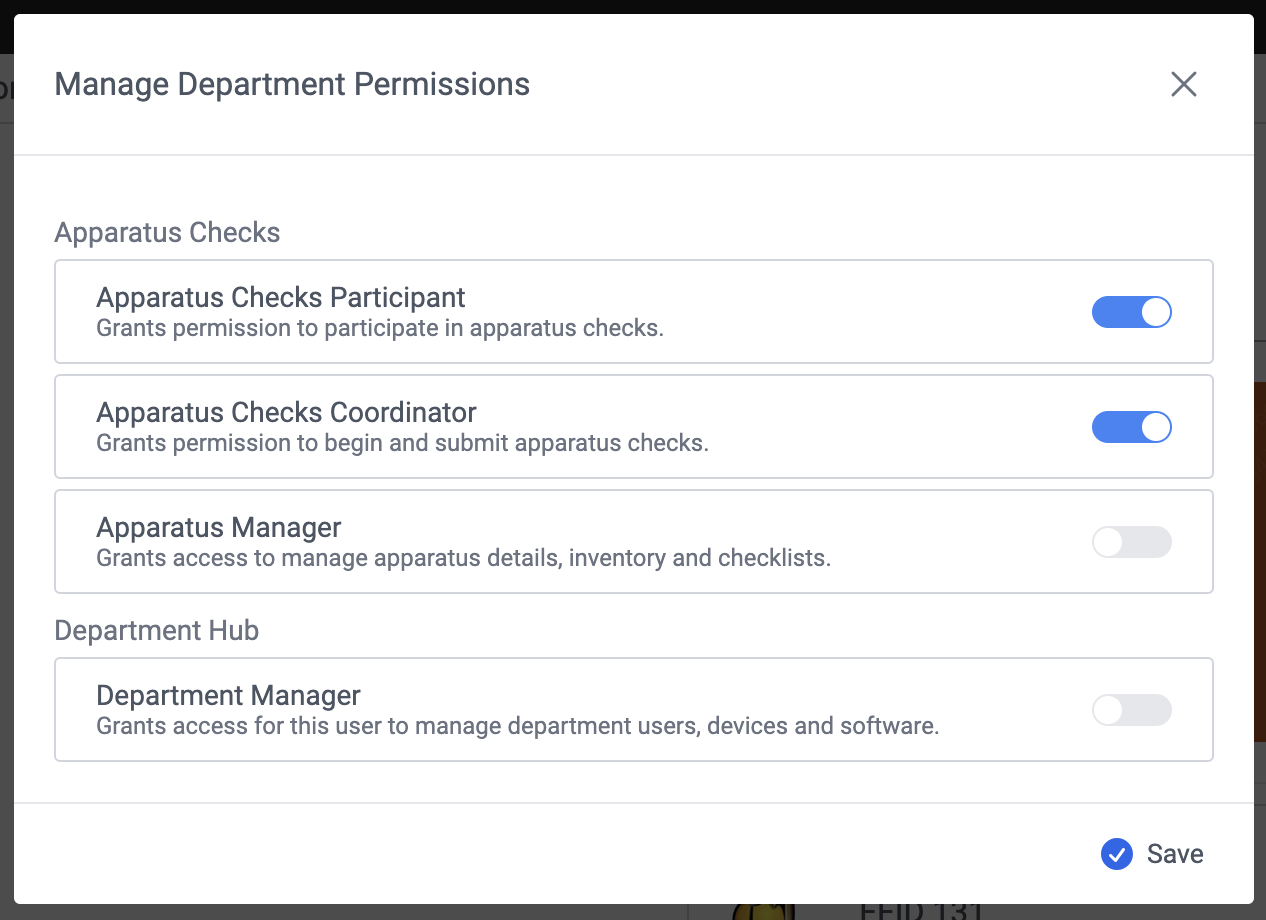](https://docs.firestationsoftware.com/uploads/images/gallery/2024-08/3-manage-permissions.png)The permissions you see in the list depend on the software features that are licensed to your department