You need *Apparatus* Manager, *Apparatus Checks Coordinator*, or *Apparatus Checks Participant* permissions to view an apparatus.
1. On a browser, go to [https://apparatus-checks.platform.firestationsoftware.com/select-apparatus](https://apparatus-checks.platform.firestationsoftware.com/select-apparatus). You may need to sign in. 2. Select the apparatus you want to view. The apparatus overview displays apparatus details, the most recent apparatus check, and the current inventory list for the apparatus. [](https://docs.firestationsoftware.com/uploads/images/gallery/2024-08/Lzq1-select-apparatus.png) [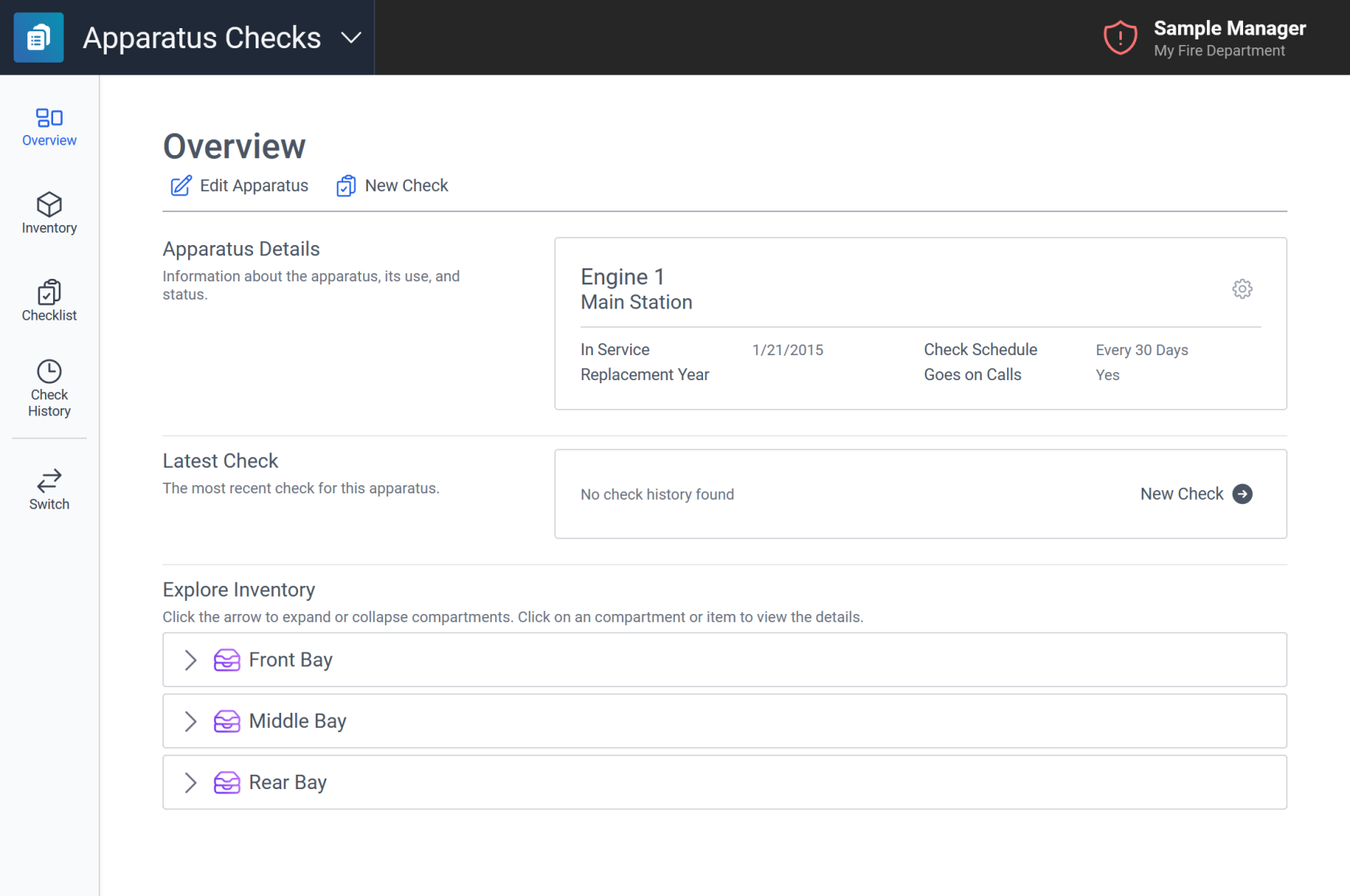](https://docs.firestationsoftware.com/uploads/images/gallery/2024-08/2-overview.png) --- ## Edit an ApparatusYou need *Apparatus* Manager permissions to make these changes.
1. Follow the **View Apparatus** steps above to select an apparatus. 2. Click the *Edit Apparatus* button at the top of the page under the page title, or in the *Apparatus Details* section, click the gear icon button to open the menu and select *Edit*. 3. In the modal form, enter apparatus details and click *Save*. [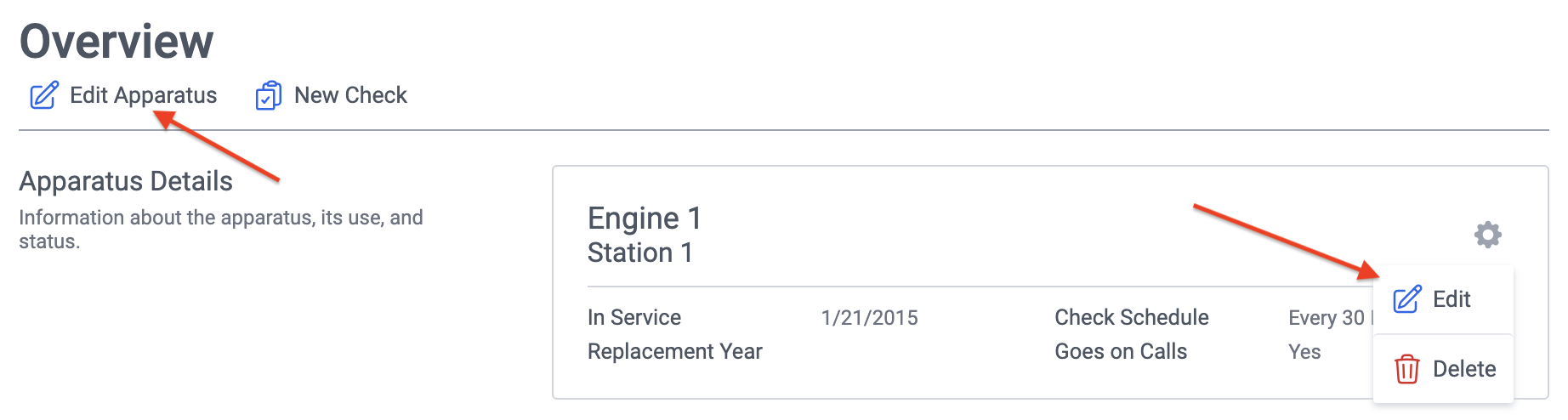](https://docs.firestationsoftware.com/uploads/images/gallery/2024-08/3-edit.png) [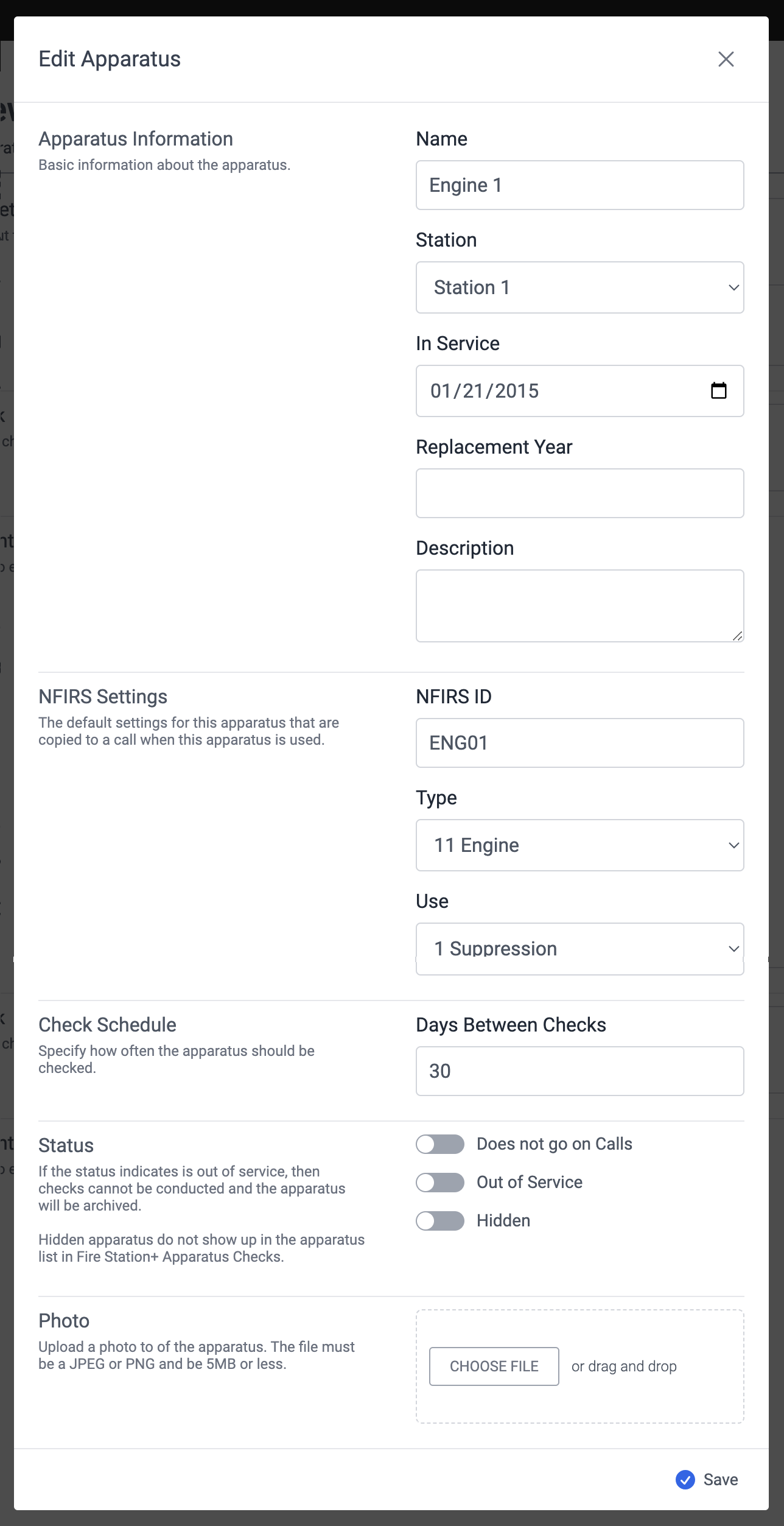](https://docs.firestationsoftware.com/uploads/images/gallery/2024-08/4-edit-modal.png)