For security purposes, Sign In with FSSID is required for departments using Cloud Data Hosting. After upgrading to the Fall 2023 release, departments using Cloud Data Hosting can still sign in using a Fire Station Desktop User for 30 days.
### Switch to Sign In with Fire Station Desktop User If your department allows signing in with a Fire Station Desktop User, you can switch to the Fire Station Desktop User Sign In screen by clicking the "Sign in With Fire Station Desktop User" link at the bottom of the screen. This option is available if Sign In with FSSID is **not** required for your department. ### Personnel FSSID Upgrade If you have a Fire Station Desktop User password that you used before the Fall 2023 release, and your personnel record is not already linked to an FSSID, you may upgrade to an FSSID using your Desktop User password. To upgrade to an FSSID: 1. Open the SignIn with FSSID screen *If FSSID Sign In is optional, use the "Sign In with FSSID" link to switch to this screen* 2. Select your personnel record from the "Name" list 3. Enter your **Desktop User password** *This is the password you have previously used to sign in to Fire Station Desktop* 4. If your personnel record is eligible for an FSSID upgrade, **follow the instructions** to upgrade your user [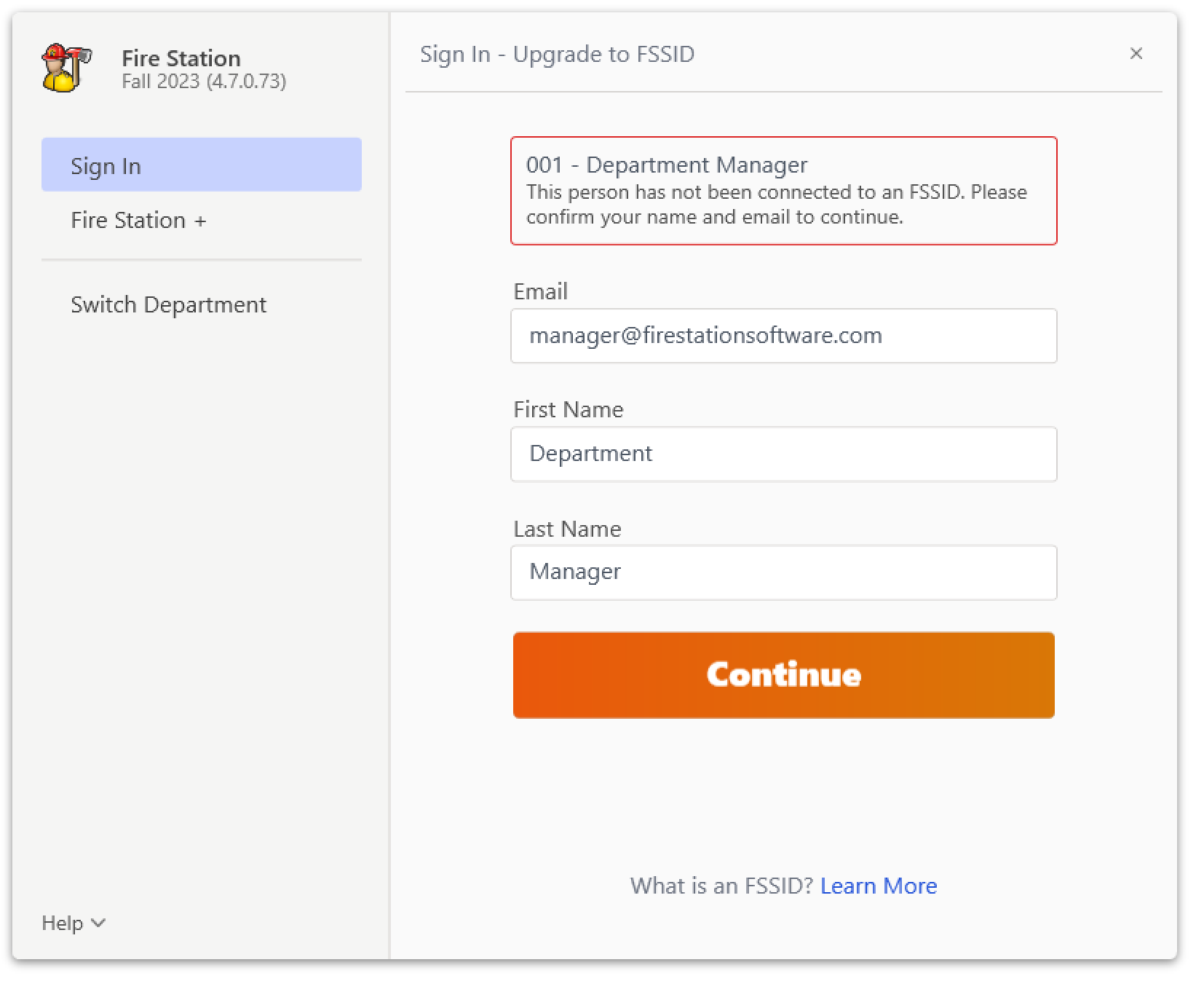](https://docs.firestationsoftware.com/uploads/images/gallery/2024-08/2-fssid-upgrade.png) 5. If your personnel record is **not** eligible for an upgrade, you will see the following message: [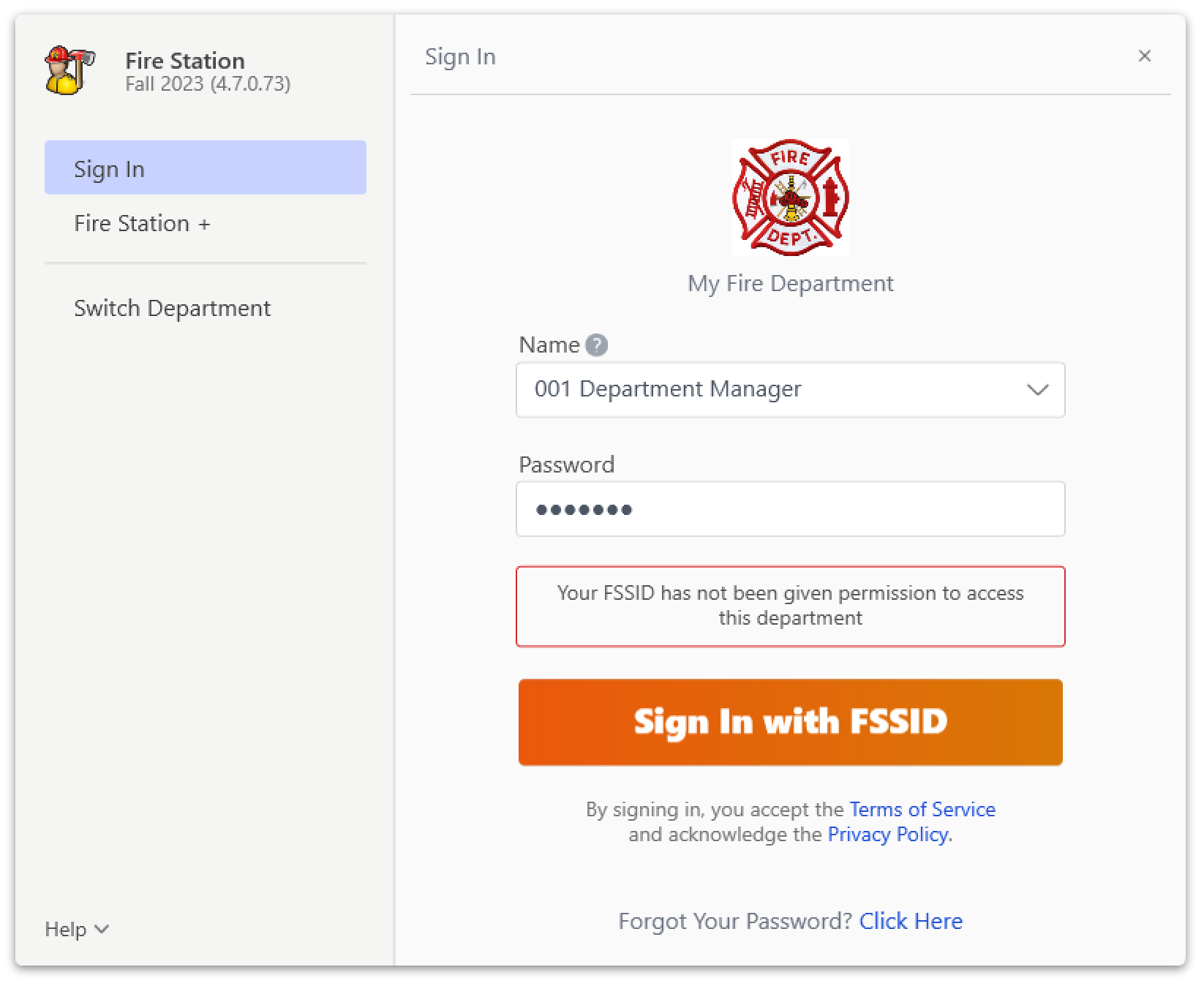](https://docs.firestationsoftware.com/uploads/images/gallery/2024-08/3-fssid-upgrade-not-allowed.png)Once you have upgraded to an FSSID, you may use the Sign In with FSSID option. If available, you may also continue signing in with your Fire Station Desktop User. Keep in mind that your FSSID password and your Fire Station Desktop user password may be different.
--- ## Sign In with Your Fire Station Desktop User If signing in with an FSSID is optional for your department, you will see the Sign In with Fire Station Desktop User after launching Fire Station Desktop. This screen lets you sign in using your Fire Station Desktop password and does **not** require an FSSID or internet access. To sign in using a Fire Station Desktop User, you must know your **Fire Station Desktop User password** or this must be the first time you are signing in with your Fire Station Desktop User.Your Fire Station Desktop User password may be different than your FSSID password.
[](https://docs.firestationsoftware.com/uploads/images/gallery/2024-08/4-database-user-sign-in.png) To sign in with your Fire Station Desktop User: 1. Select your personnel record from the "Name" list 2. Enter your **Fire Station Desktop User password** in the "Password" box *If this is your first time signing in, enter a new password* [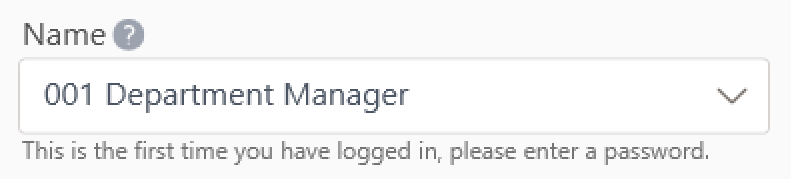](https://docs.firestationsoftware.com/uploads/images/gallery/2024-08/5-first-time-sign-in.png) 3. Click the "Sign In" button # Updating the Software Fire Station Desktop receives updates from your Department Hub. You will be notified of updates after signing in to Fire Station through a pop-up window.Summary: Click "Check for Updates" while using Fire Station to install updates. [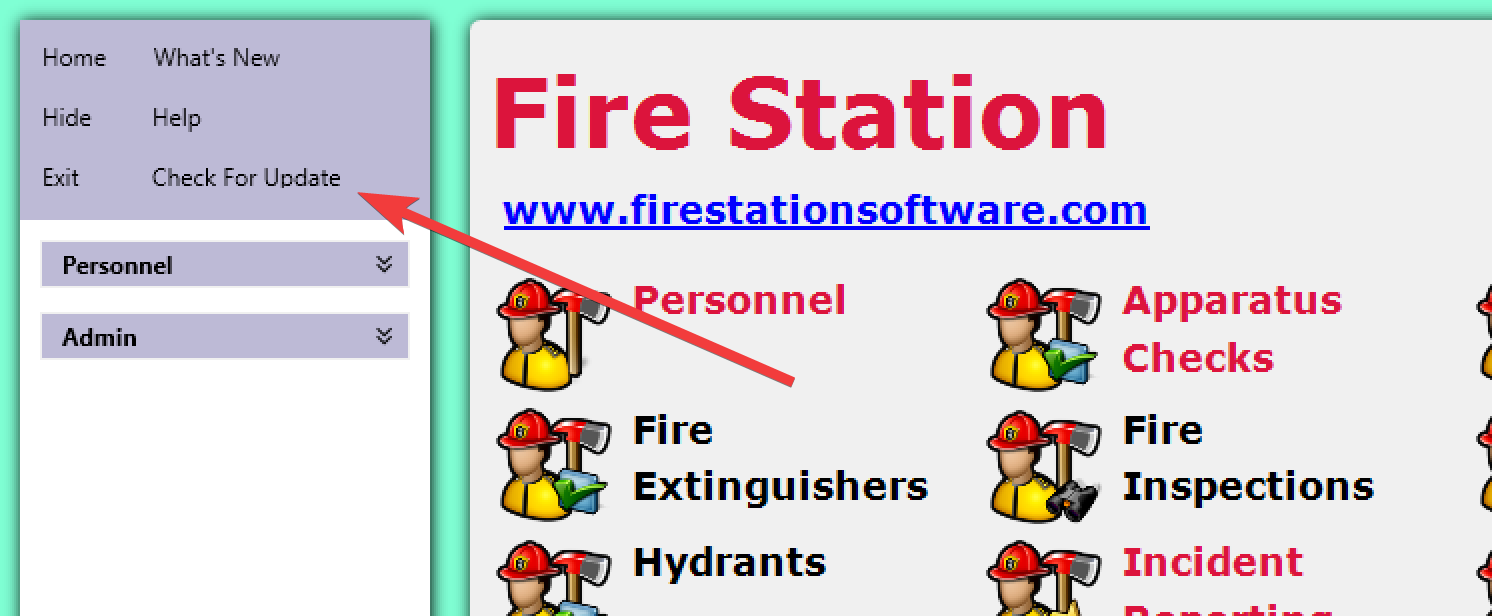](https://docs.firestationsoftware.com/uploads/images/gallery/2024-08/1-check-for-updates.png)
## Checking Your Software Version To determine which version of Fire Station you have installed, open the "Admin" menu and click the "About" link. [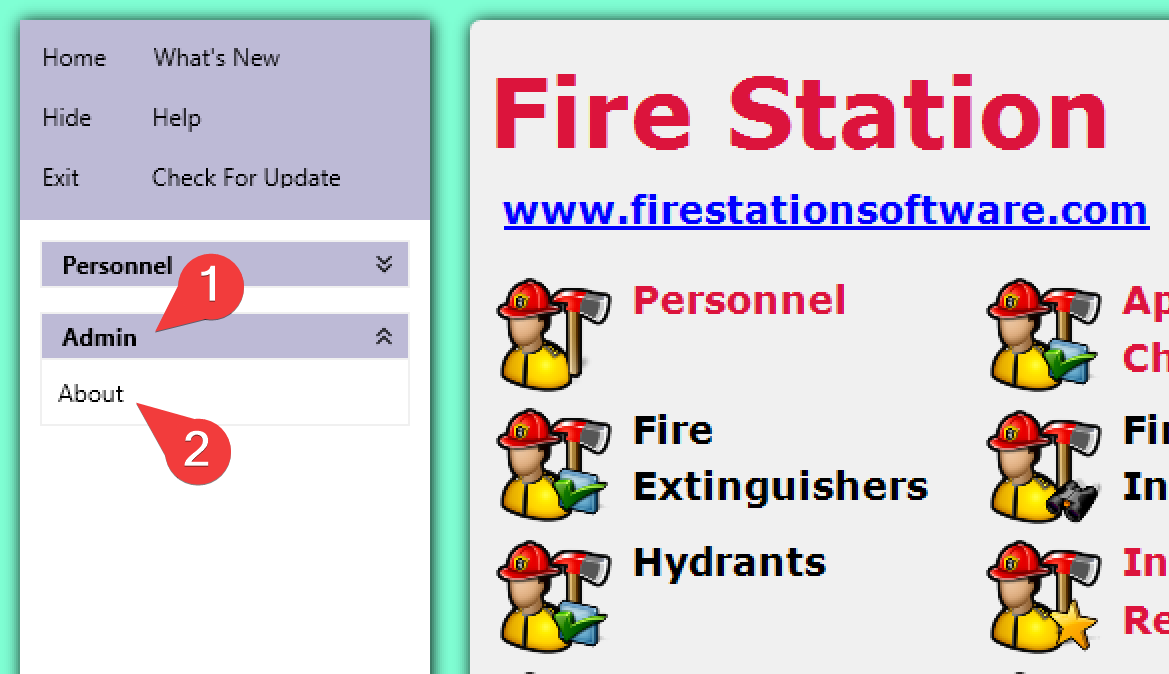](https://docs.firestationsoftware.com/uploads/images/gallery/2024-08/2-check-version.png) The version number is displayed in the pop-up window. [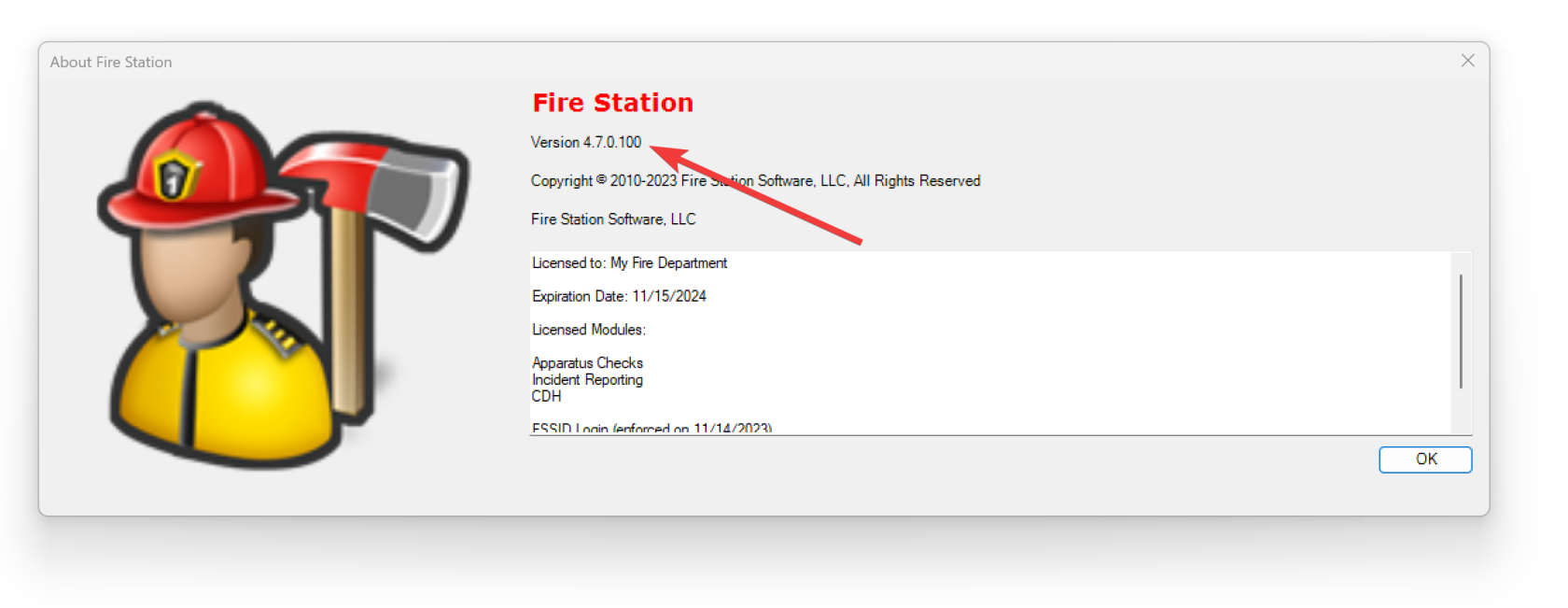](https://docs.firestationsoftware.com/uploads/images/gallery/2024-08/3-version-detail.png) --- ## Manually Running Fire Station Setup At times it may be necessary to start the setup program manually. This is typically caused by installation errors or other system configuration. To do this, open C:\\Program Files (x86)\\Fire Station Software, LLC\\Fire Station Setup v2 Then, double-click the Fire Station Setup application: [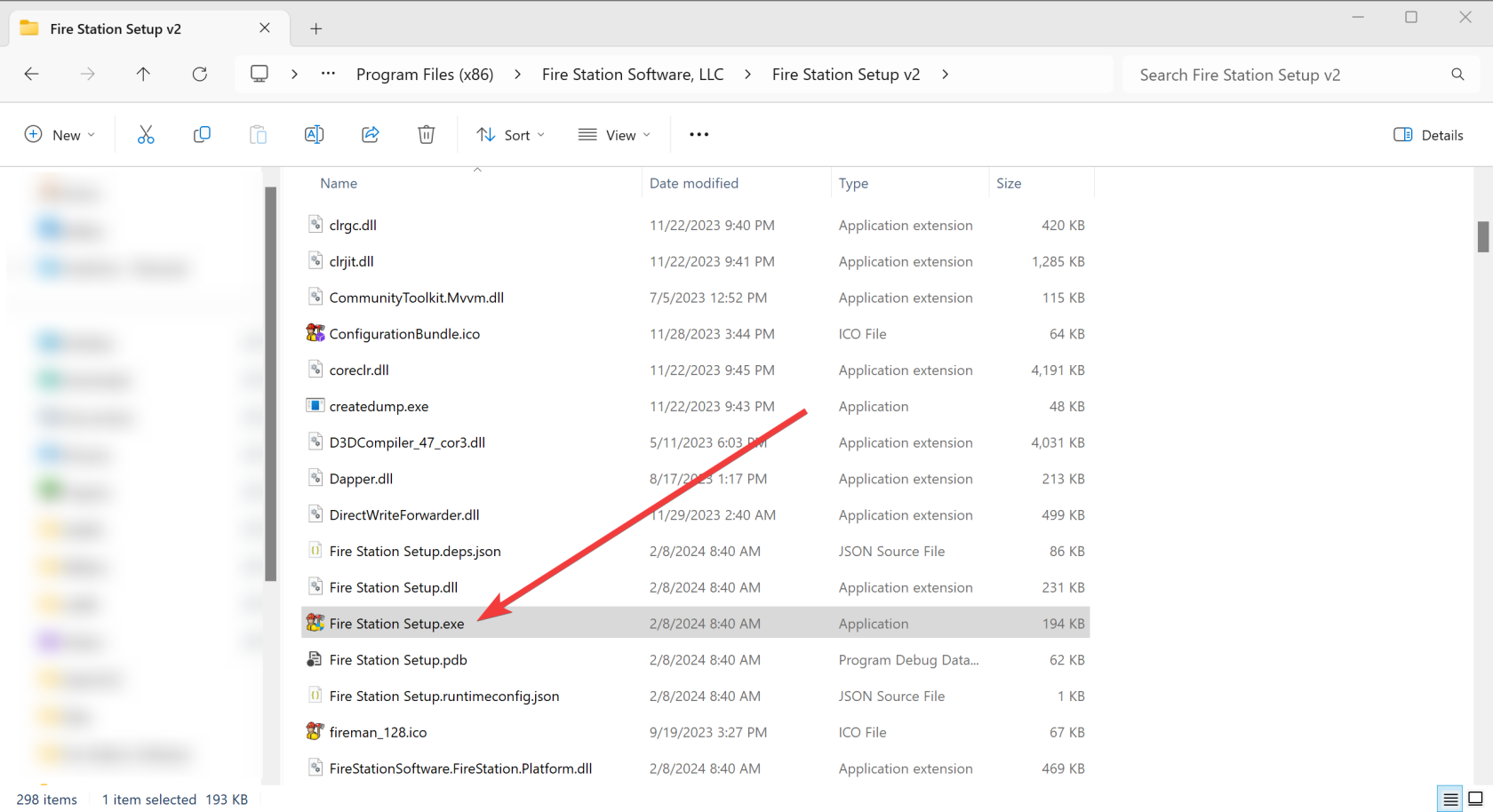](https://docs.firestationsoftware.com/uploads/images/gallery/2024-08/4-manually-run-setup.png) # Fire Station Software Getting Started Guide Personnel Module - Adding Ranks/Adding Personnel in the desktop software - Personnel -> Manage Ranks - Rank Field. Enter a new rank. - Set the ISO Rank, Officer in Charge and display order. - Save when complete. - Personnel -> Manage Personnel - Click the **+Add** button. - Add the Department ID, First Name, Last Name, Rank and Email Address. - Click OK when complete and click YES to confirm adding the personnel member. Apparatus Checks Module - Adding individual Apparatus - Click on Edit Inventory, click **+Add New Apparatus**. - From the pop up enter the apparatus Name, Type, Use and NFIRS ID. Click OK when complete. - Once added you will see a tree of your apparatus. You can now add Compartments and Items. - Click on an apparatus and click **New Compartments**, click Save. - Click New Compartment to add specific compartment of the apparatus, Save when complete. - The Compartment/s will now be displayed on the tree. - Click a Compartment from the tree to add then click **New Item**. A pop-up box will display where you can add multiple items that are in the compartment. - All apparatus, items and compartments of a compartment will display for Apparatus Checks in both the desktop and Apparatus Checks HUB feature to complete and submit checks. - The above completed details will display for conducting checks in both the desktop software and Apparatus Checks in the HUB. Permissions and inviting Personnel to establish FSSID Login Credentials All personnel/members will need to set up FSSID login credentials associated with their email address. Desktop Software - Permissions: - Go to Admin > Manage Permissions - Click on the personnel's name. A tab for each module you carry will display. Click each module tab and add a check mark for the permissions to give the personnel/member. Once complete click Save. HUB FSSID Invite and Permissions: - Click on Invite. Personnel with an email in the desktop software will show. Click the check box of each personnel and then at the lower page select permission level for the HUB. Send Invitation. - Permissions may vary between members so send separate invitations as needed. Fire Station Software Desktop and HUB Fire Station+ User Guide - [https://docs.firestationsoftware.com](https://docs.firestationsoftware.com) For any questions or additional assistance please contact : **FSS Support** Email: