If your department uses Cloud Data Hosting, you may also link an FSSID using the Department Hub.
## Linking an FSSID To link an FSSID from Fire Station Desktop you must have the *Department Manager* permission in your department and **you must sign in to Fire Station Desktop using your FSSID**. You must also have *Can Manage Personnel* permission in Fire Station Desktop. Once you are signed in using your FSSID, follow these steps to link a personnel record to an FSSID: 1. Click "Personnel" > "Manage Personnel" to open the Manage Personnel screen [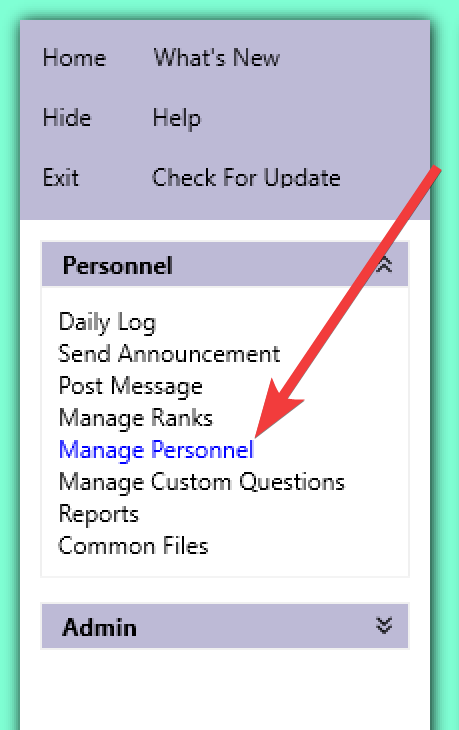](https://docs.firestationsoftware.com/uploads/images/gallery/2024-08/1-manage-personnel.png) 2. Select the personnel record you would like to link an FSSID to [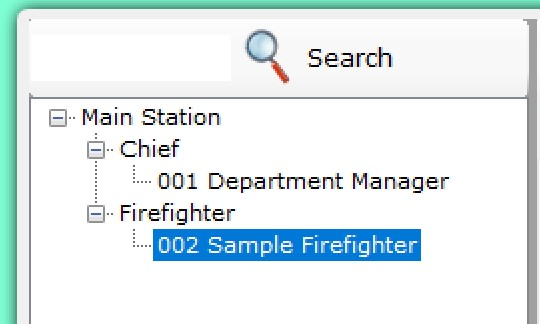](https://docs.firestationsoftware.com/uploads/images/gallery/2024-08/2-select-personnel.png) 3. Click the "FSSID" tab [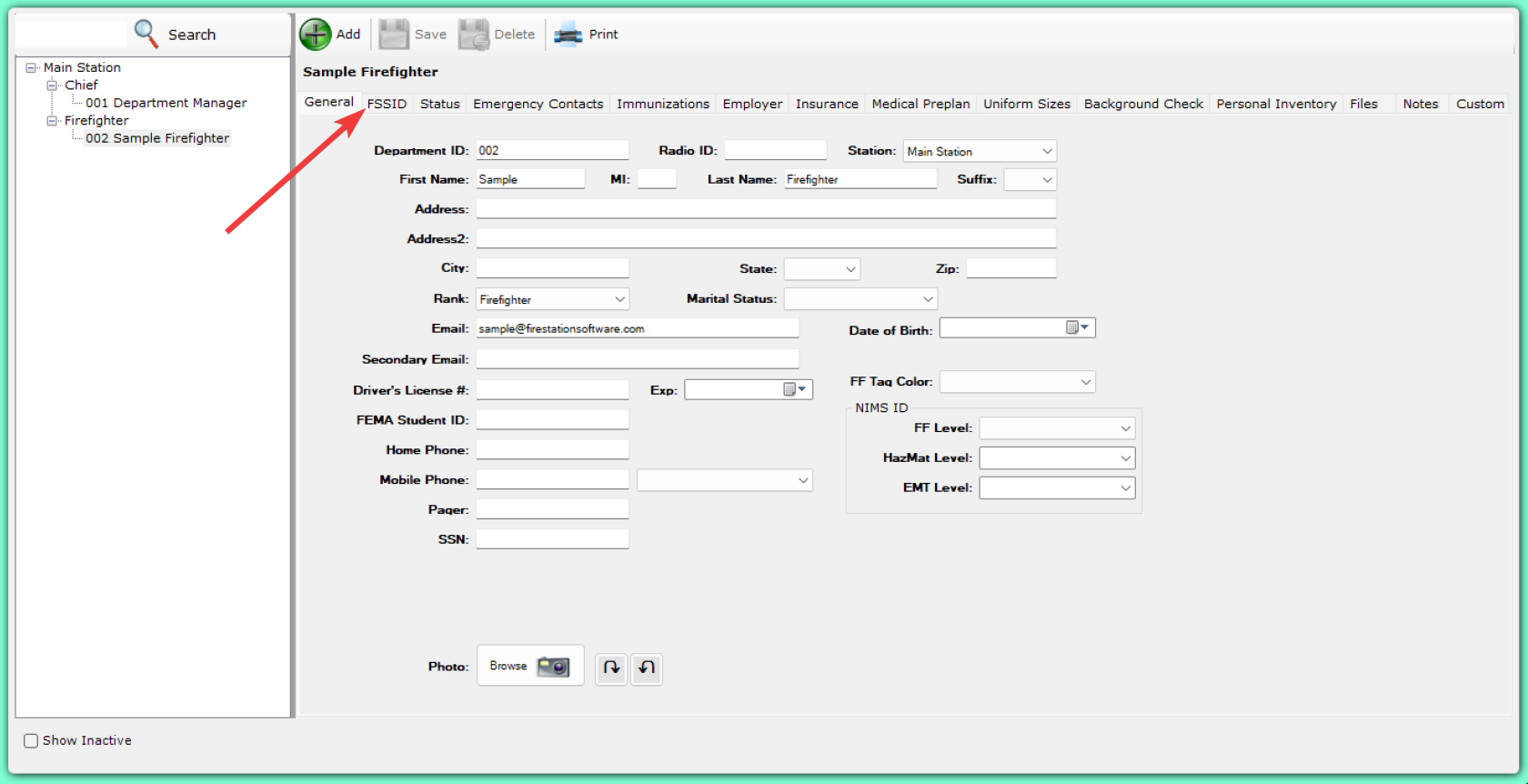](https://docs.firestationsoftware.com/uploads/images/gallery/2024-08/F2U3-fssid-tab.png) 4. Then follow the instructions to link an FSSID **1** *If the user's FSSID is already a member in the Department Hub, then select the FSSID from the drop-down list* * **2** If the user does **not** have an FSSID, or they are not a member in your Department Hub, click the "Send FSSID Invitation" button* [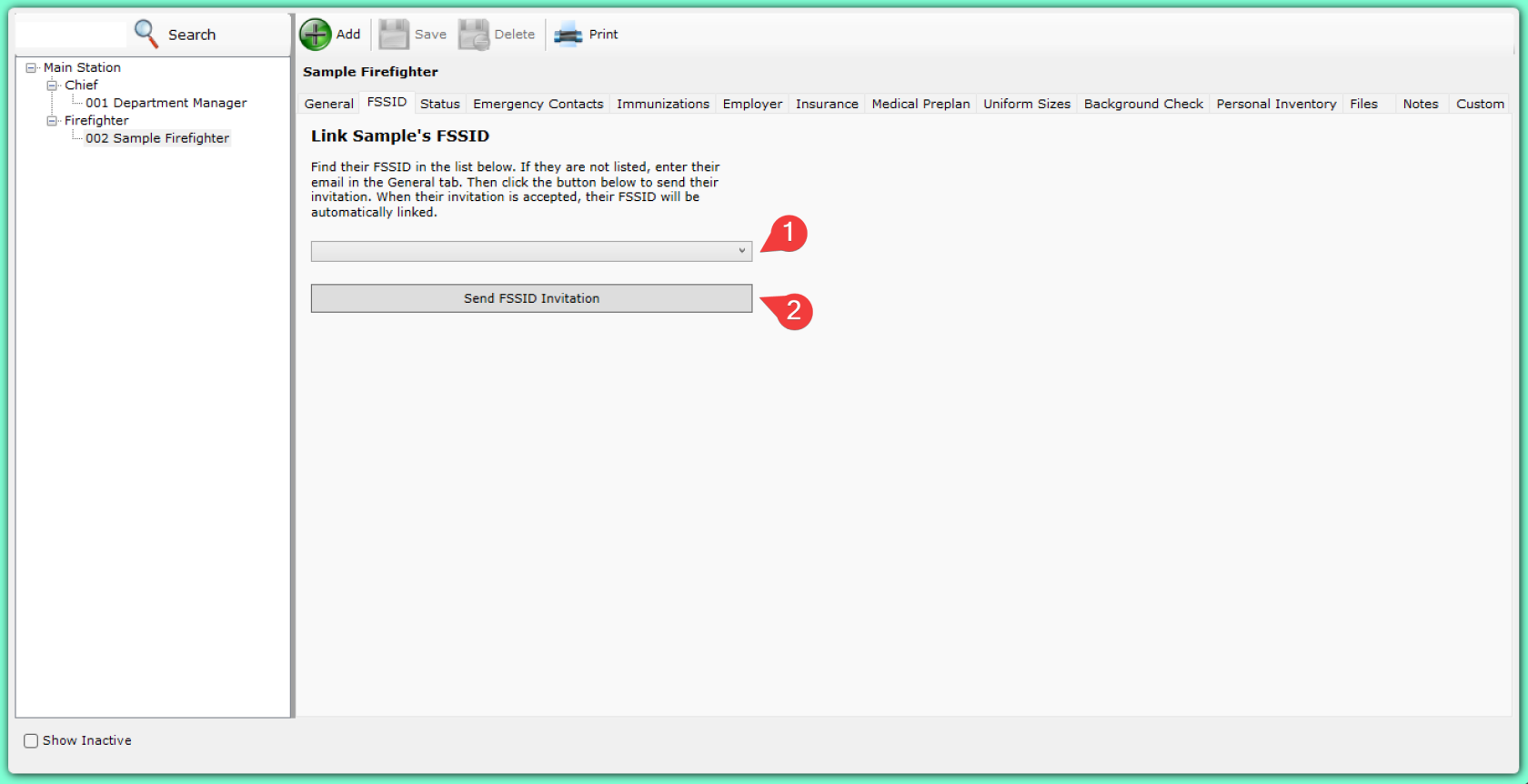](https://docs.firestationsoftware.com/uploads/images/gallery/2024-08/4-fssid-invitation.png) 5. Once the FSSID is linked, or once the user accepts the invitation, the linked FSSID will be displayed [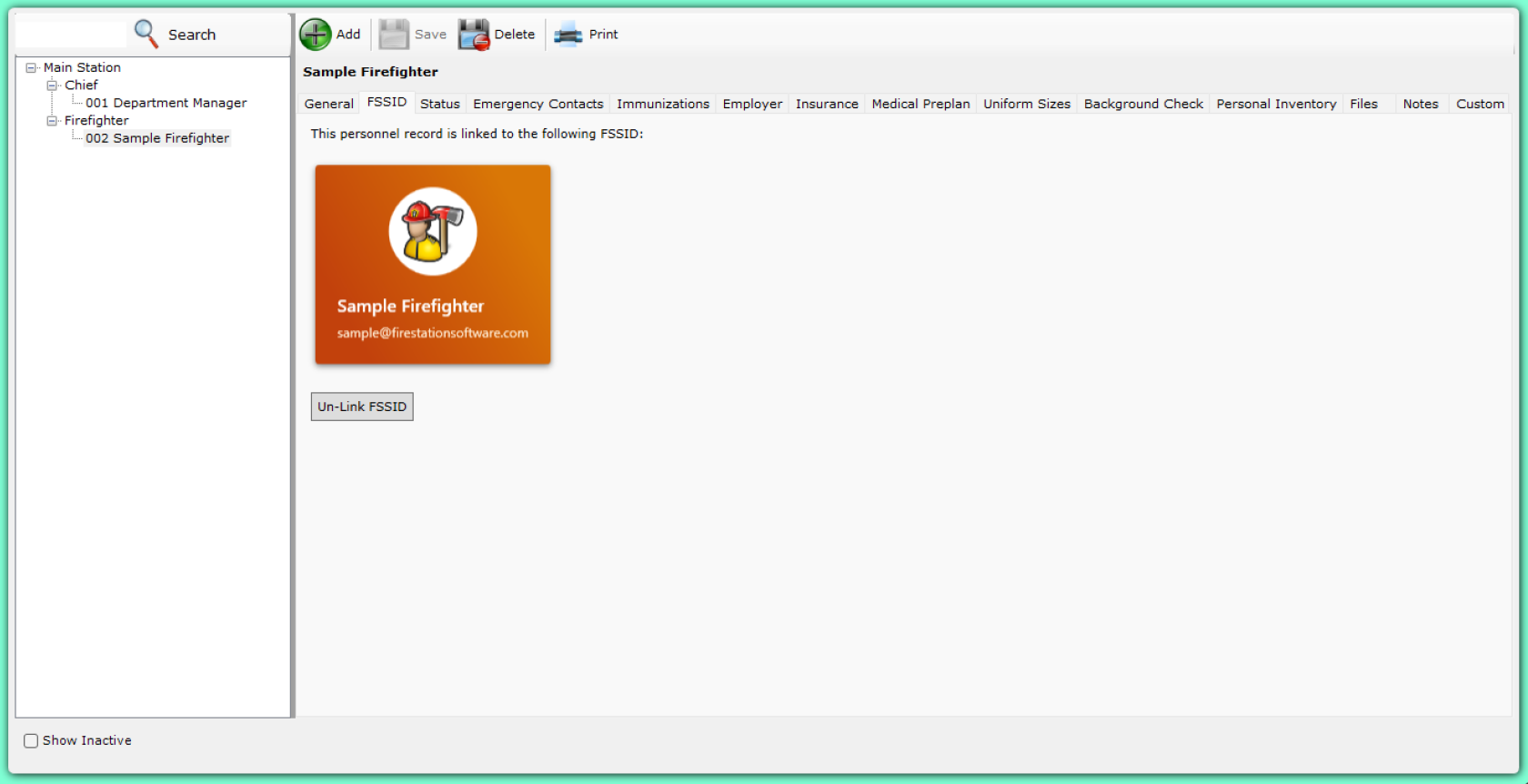](https://docs.firestationsoftware.com/uploads/images/gallery/2024-08/5-linked-fssid.png)