You must have *Can Manage Permissions* permissions to make these changes.
1. Sign in to Fire Station Desktop. 2. In the left menu, select *Admin* > *Manage Permissions*. 3. Select the name of the person you want to update. 4. Select the *Active911* tab. You may need to use the arrows on the right to scroll over to this tab. 5. Check off "Can Link Alerts to Calls". 6. Click the "Save" button at the top of the page. [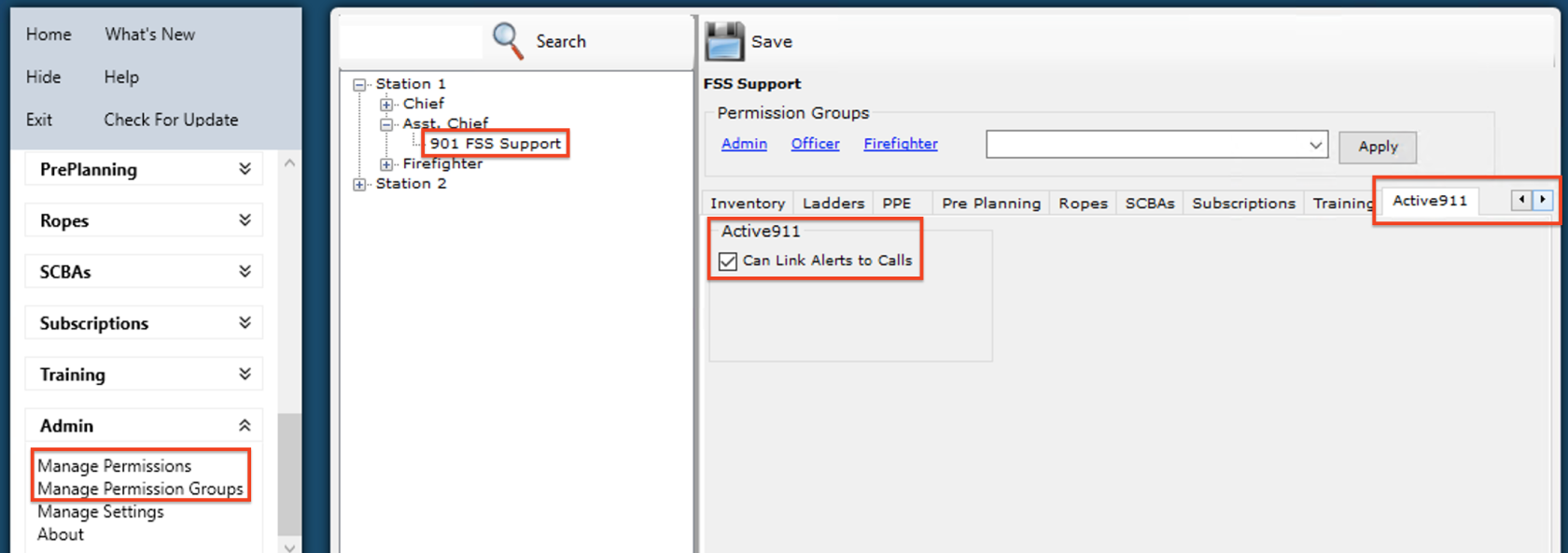](https://docs.firestationsoftware.com/uploads/images/gallery/2024-09/1-permissions.png) ### Link an Alert to a Quick CallYou must have *Can Link Alerts to Calls* permissions to use this feature.
1. Sign in to Fire Station Desktop. 2. In the left menu, select *Incident Reporting* > *Enter New Quick Call*. - You can also link alerts to an existing quick call by selecting it from *Incident Reporting* > *Edit Entered Calls* 3. Click the "Link Active911 Alerts" button at the top of the page. Alerts for the last 30 days are displayed in the modal dialog. [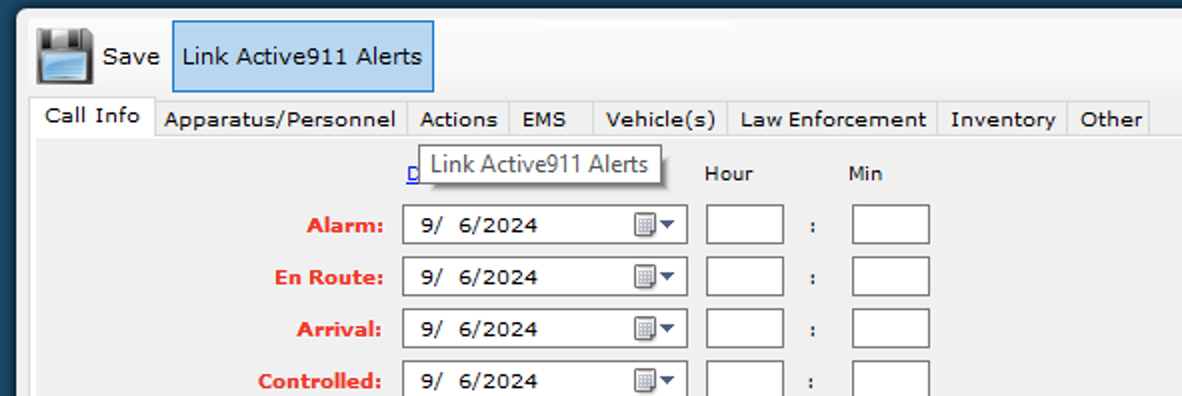](https://docs.firestationsoftware.com/uploads/images/gallery/2024-09/2-link-alerts.png) 4. Select an alert from the list to view the details from Active911. [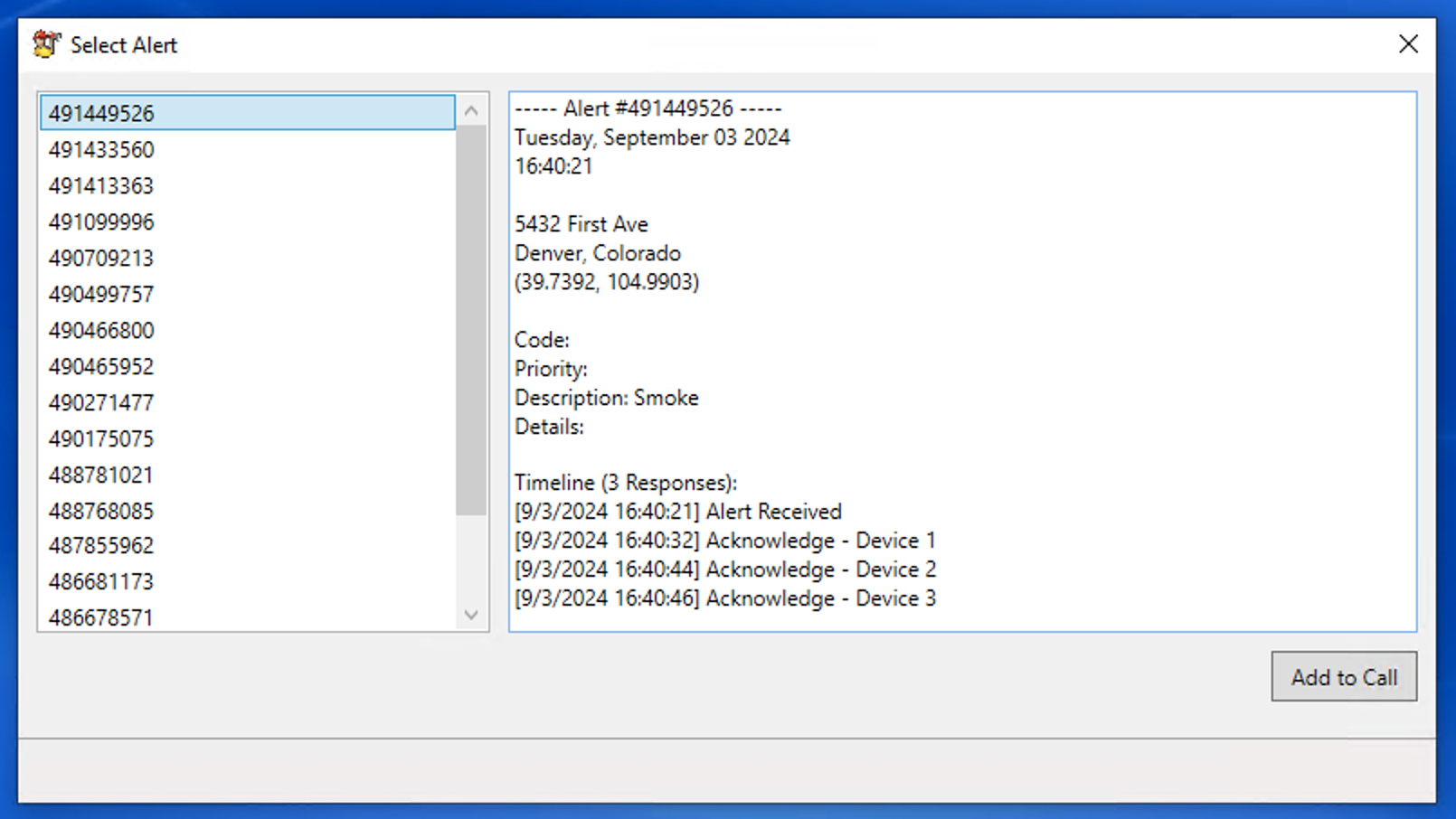](https://docs.firestationsoftware.com/uploads/images/gallery/2024-09/3-select-alert.png) 5. Click the "Add to Call" button at the bottom of the modal dialog. Alert information is copied to the *Call Info* tab: - The alert's date is copied to the call's alarm, en route, arrival, controlled, in service and in quarters dates. - The alert's time is copied to the call's alarm time. - The alert's location is copied to the call's location. - The alert's details are appended to the call's description. Any mapped responders responded to this alert, they are added as attendees on the *Apparatus/Personnel* tab.You can link multiple alerts to the same call. Alert information will **not** overwrite existing information entered on the call. However, the alert's details will always be appended to the call's description so you can manually copy information. Once an alert is linked to a call, it will not appear in the list to be selected again. If a call is deleted, any alerts will be unlinked and will appear in the list again.
[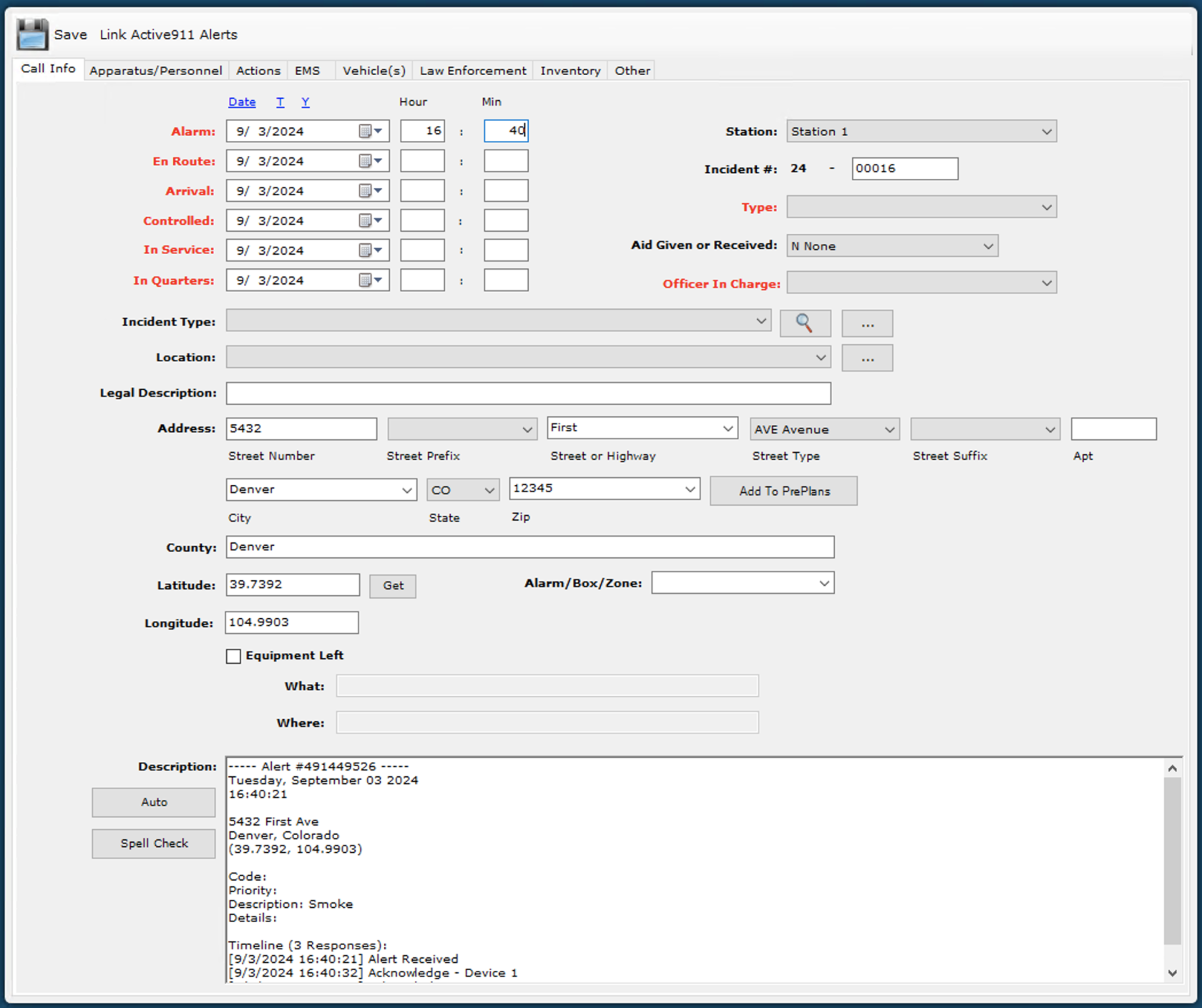](https://docs.firestationsoftware.com/uploads/images/gallery/2024-09/zA64-details-copied.png) [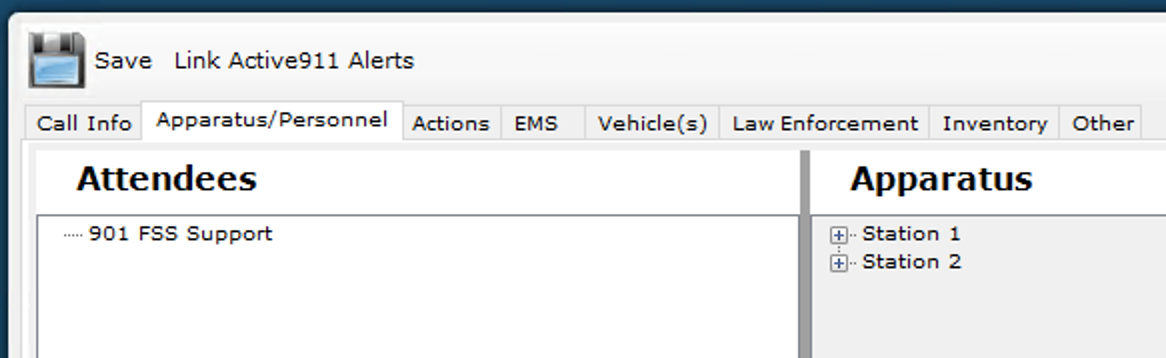](https://docs.firestationsoftware.com/uploads/images/gallery/2024-09/5-attendees-copied.png)